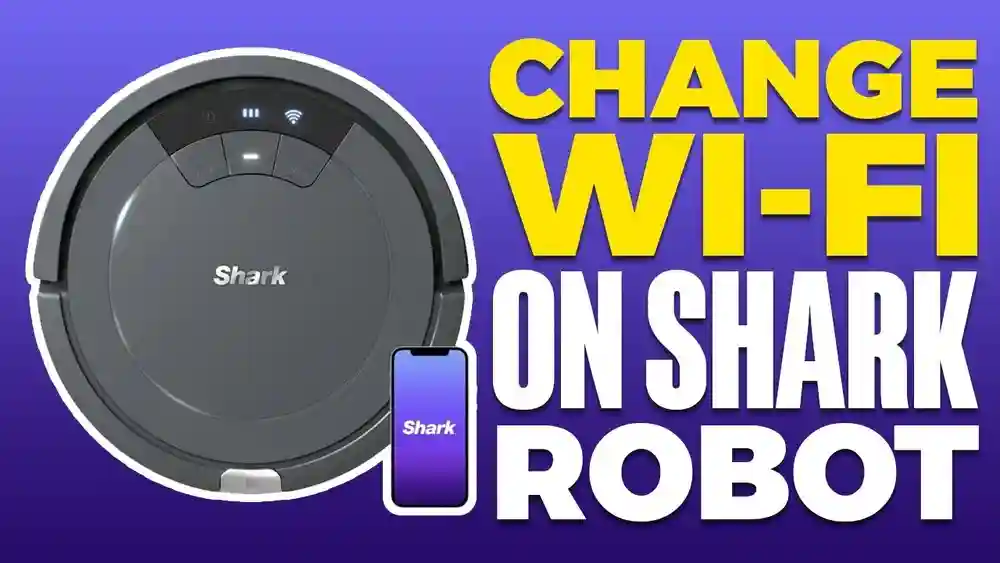
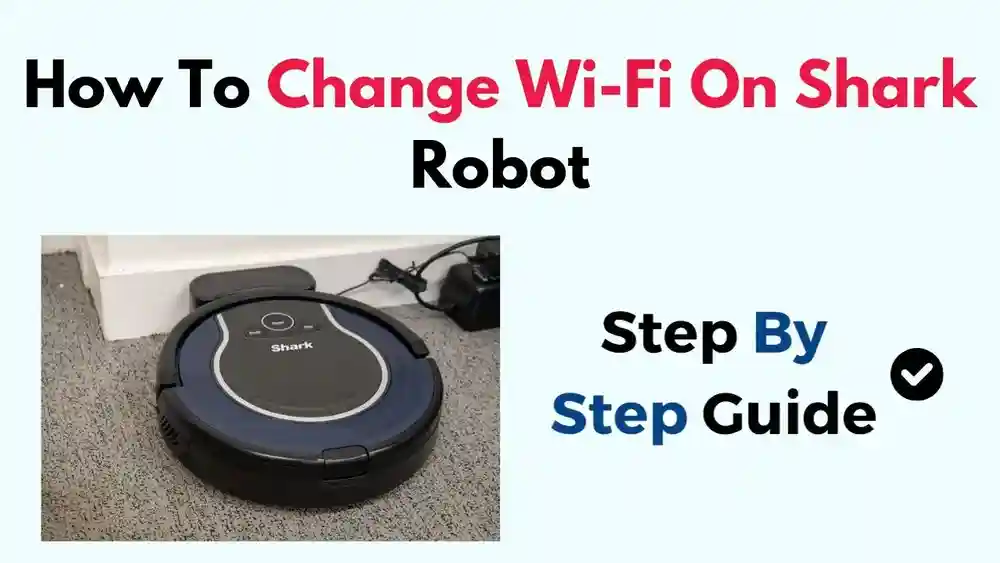
Changing the WiFi password for your Shark Robot can seem like a small task, but it’s one that often causes frustration for many users. Robots like the Shark IQ, Shark AI, and Shark ION depend on a stable WiFi connection to function properly. When you change your home WiFi password, your robot vacuum can no longer connect, leading to errors, missed cleaning schedules, and lost smart features.
Understanding how to reconnect your Shark Robot after a WiFi password change is essential for keeping your smart cleaning system running smoothly. This guide gives you the complete steps, covers common issues, and offers practical tips that can save you time and trouble.
Whether you are not tech-savvy or just want a clear answer, you’ll find everything you need here. And by truly understanding the process, you’ll gain confidence in managing not only your Shark Robot, but also other smart devices in your home.
Why Your Shark Robot Needs The Correct Wifi Password
Your Shark Robot uses your home’s WiFi network to communicate with the SharkClean app and get updates. If the WiFi password changes and you don’t update your robot, it loses all remote control features. This means you can’t start cleaning from your phone, change schedules, or use voice assistants like Alexa or Google Home.
Many users miss that WiFi is also needed for:
- Firmware updates (to fix bugs or add features)
- Real-time notifications (like “bin full” or “job complete” alerts)
- Location-based commands (like “clean when I leave home”)
- Checking cleaning history and maps (some models show where the robot cleaned)
- Sending error reports to Shark support if you need help
Without a correct WiFi password, your robot becomes a basic vacuum with limited functionality. For example, if your robot’s dustbin is full, you won’t get a notification. If there’s a technical problem, you’ll have no easy way to see error codes or send logs to Shark support.
Also, if you rely on Alexa or Google Home for hands-free control, that stops working until you reconnect.
Extra Example: If you travel often or want to start cleaning while away from home, your robot needs WiFi. Without it, you lose remote start and scheduling. Many users do not realize this until they try to use these features and find their robot offline.
Preparing To Change Your Shark Robot’s Wifi Password
Before you start, make sure you have:
- Your new WiFi password (write it down exactly—passwords are case-sensitive)
- Your WiFi network name (SSID)
- The SharkClean app installed and updated on your smartphone
- Your robot placed near your WiFi router for the best signal
- Your phone connected to the same WiFi network you want your robot to use
Pro Tip: If your router supports both 2.4GHz and 5GHz bands, remember that most Shark Robots only work with the 2.4GHz network. Connecting to the wrong band is a common mistake.
Common Mistake: Some users try to connect their robot while the phone is using mobile data or a different network. Always connect your phone to the same WiFi band and network name you want for your robot.
Extra Detail: If you have a mesh WiFi system, make sure you know which network name is the 2.4GHz one. Some mesh systems combine both bands under one name, but not all support smart devices well. If you have trouble, check your router’s app or manual for help splitting the bands during setup.
Example: One user had trouble connecting until they realized their phone was on the 5GHz network, but the robot could only see the 2.4GHz one. Switching the phone to 2.4GHz solved the problem instantly.
Step-by-step: How To Change Wifi Password For Shark Robot
Changing the password on your Shark Robot isn’t about typing it into the robot itself. Instead, you’ll reconnect your robot to your home network through the SharkClean app. Here’s how:
1. Open The Sharkclean App
Launch the SharkClean app on your smartphone. Log in with your Shark account if you aren’t already signed in.
Tip: Make sure your app is updated to the latest version. Outdated apps can have bugs or missing features, which may cause connection problems.
2. Delete Or Forget The Old Wifi Connection
Most Shark Robots do not have a “change WiFi” option directly. Instead, you need to reset the robot’s WiFi settings:
- Go to the app’s Settings
- Select your robot model
- Find the option to “Remove Robot” or “Forget This Device”
This action does not delete your cleaning history or schedules from your account, but it will disconnect your robot from the old WiFi.
Extra Detail: Removing the robot from the app ensures you start fresh. If you skip this, the app may get confused and show the robot as “offline” even after you try to reconnect. Don’t worry—your data stays safe in your Shark account.
3. Reset Your Shark Robot’s Wifi
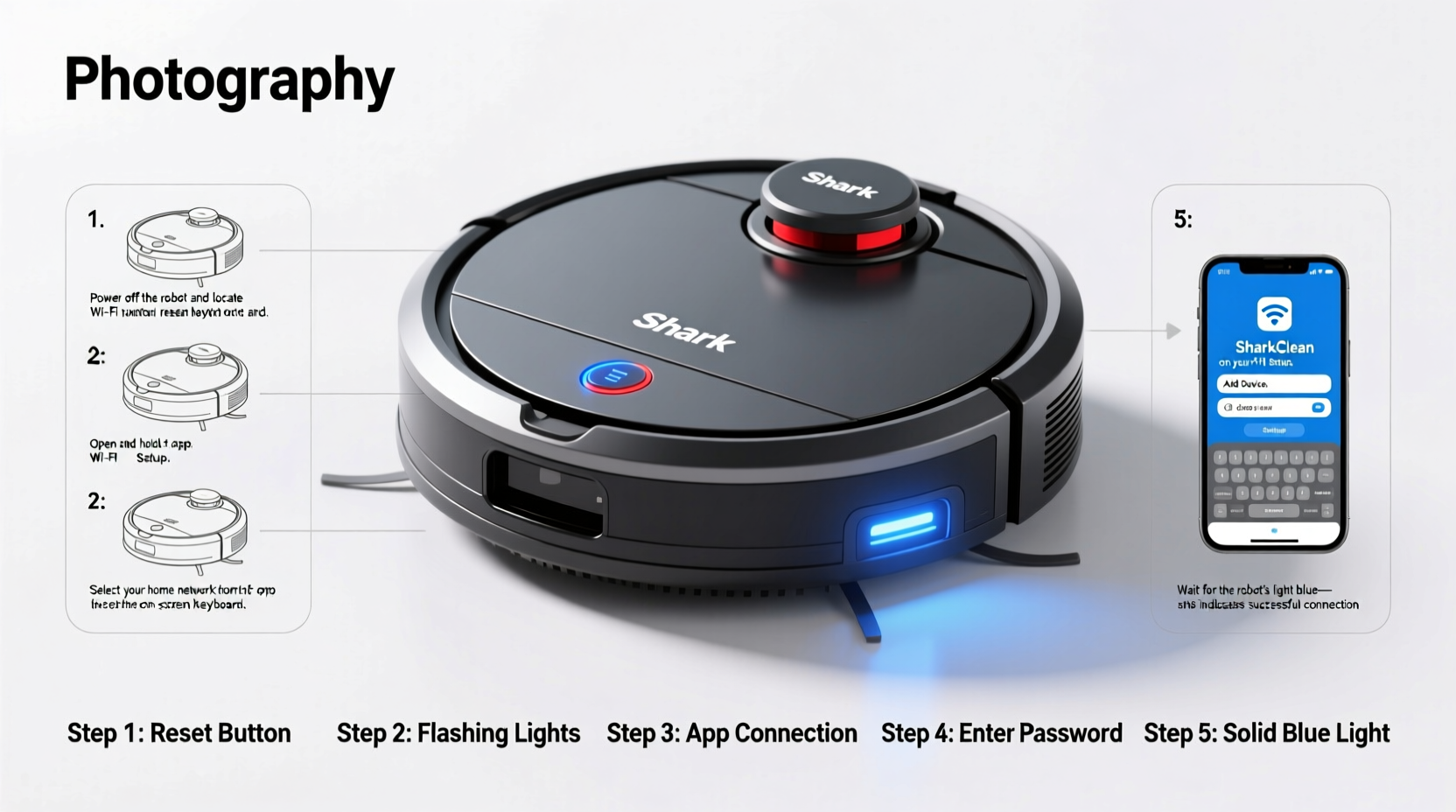
To connect to the new WiFi, you need to put your robot in WiFi setup mode. Here’s how for most Shark models:
- Make sure your robot is on and on the charging dock
- Press and hold the Dock and Clean buttons together (some models use the Dock and Spot buttons) until the WiFi light blinks
Check your model’s manual for the exact button combination, as this can vary.
Practical Example: If you have a Shark IQ, use Dock + Clean. For Shark AI, use Dock + Spot. Hold for about 5-10 seconds. A blinking WiFi light means setup mode is active.
Extra Tip: Some users hold the buttons too briefly, so the robot doesn’t enter setup mode. If the WiFi light doesn’t blink after 10 seconds, release and try again, pressing firmly.
4. Reconnect Using The App
- In the SharkClean app, tap “Add Robot” or the + symbol
- Follow the prompts to connect to WiFi
- When asked, enter your new WiFi password and select the correct network (remember: Choose 2.4GHz if available)
- Wait for the app and robot to pair. This usually takes 1-2 minutes.
If successful, the app will confirm and your robot’s WiFi light will turn solid.
Extra Detail: During setup, the app may ask for location permission or Bluetooth access. Say “yes”—these help the app find and connect to your robot.
Practical Example: If you see your network but can’t connect, double-check the password. Some phones auto-capitalize the first letter or add spaces at the end. Enter the password carefully.
5. Test The Connection
- Try starting a cleaning job from the app
- Check if you get notifications
- If you use Alexa or Google Assistant, test a command like “start vacuuming”
If everything works, your robot is now fully connected to the new WiFi password.
Extra Example: Open the app, send a cleaning job, and watch if the robot responds within 10 seconds. If it does, the connection is strong. If not, double-check your steps.
Non-obvious Insight: Many users skip the testing step. Later, they find out the robot isn’t really connected. Always test right after setup to catch problems early.
Troubleshooting Common Issues
Even if you follow the steps exactly, problems can happen. Let’s look at the most common ones and how to solve them.
Shark Robot Won’t Connect To Wifi
- Wrong WiFi band: Make sure you are connecting to 2.4GHz, not 5GHz.
- Wrong password: Double-check for typos or extra spaces.
- Robot too far from router: Move it closer during setup.
- Router is hiding SSID: Some routers hide their network name. Make sure your SSID is visible.
- Network overloaded: Disconnect unused devices from WiFi to free up space.
- Special characters in SSID or password: Some robots cannot process special symbols or spaces in network names or passwords.
Example: One user had a password with a “$” symbol, which worked for their laptop but not the robot. Changing it to only letters and numbers fixed the issue.
Wifi Light Keeps Blinking
A blinking WiFi light means the robot is trying to connect but can’t. Try restarting both the robot and your WiFi router. If it still blinks, repeat the setup process.
Extra Explanation: If the WiFi light blinks for more than five minutes, the robot is not connecting. Start the process over from the beginning, making sure all details are correct.
App Cannot Find Robot
- Make sure your phone is on the same WiFi network as your robot
- Turn off VPNs or mobile data during setup
- Restart your phone
- Try moving closer to the router for a stronger signal
Non-obvious Insight: VPNs or mobile data can confuse the app. Temporarily disabling them during setup often solves “robot not found” errors.
Error Messages In The App
- “Cannot connect to robot”: Reset the robot and start over
- “Network not supported”: Only use 2.4GHz networks
- “Timeout”: Move closer to the router and try again
Extra Detail: If you see a “timeout” error, it usually means the robot could not finish connecting in time. Interference from other devices or thick walls can also cause this.
Firmware Or App Update Needed
Sometimes, connection fails because your app or robot firmware is out-of-date. Check for updates in the app store or Shark’s website.
Non-obvious Insight: Many users miss that having a special character (like %, &, or #) in their network name or password can cause connection problems. If you can’t connect, try changing your WiFi password to use only letters and numbers.
Example: After struggling for hours, one user changed their network name from “Home#1” to “Home1” and finally got the robot to connect.
Advanced Tips: Making Wifi Changes Easier
Use A Consistent Network Name
If you plan to change your WiFi password often (for security), keep your WiFi network name (SSID) the same. This means you only need to update the password, not re-add every device.
Practical Example: Some users change both the SSID and password when moving to a new router. If you keep the SSID the same, many devices (including your Shark Robot) will automatically try to reconnect, needing only the new password.
Guest Network For Smart Devices
Set up a guest network for all smart devices, including your Shark Robot. This makes changing passwords easier and keeps your main network more secure.
Extra Detail: Many routers let you create a guest network with its own password. If you ever have to share your WiFi with guests, your main devices stay safe.
Document Your Settings
Keep a simple note (on paper or a password manager) with your WiFi names, passwords, and which devices use which network. This makes troubleshooting much faster.
Practical Tip: Create a chart or list of each device and its assigned network. When you change the WiFi password, you can quickly see which devices need updating—no guesswork.
Avoid Network Overload
If you have many smart home devices, your router may slow down. Upgrade to a router that supports more connections if you have more than 20 devices.
Example: Older routers may only support 10-15 devices before slowing down. For a modern smart home, a mesh router or one designed for many devices is a good investment.
Use Router Apps
Most modern routers have their own apps that show what devices are connected. This can help you see if your Shark Robot is online, and identify issues faster.
Extra Detail: Some router apps let you “pause” or “restart” individual devices. If your Shark Robot is stuck, you can try restarting it from the router app instead of unplugging it.
Comparing Shark Robot Models: Wifi Setup Differences
While the setup steps are similar, some Shark models have unique differences. The table below compares common setup features.
| Model | WiFi Setup Mode Buttons | 2.4GHz Only | App Required |
|---|---|---|---|
| Shark IQ Robot | Dock + Clean | Yes | Yes |
| Shark AI Robot | Dock + Spot | Yes | Yes |
| Shark ION Robot | Dock + Clean | Yes | Yes |
| Shark EZ Robot | Dock + Clean | Yes | Yes |
Non-obvious Insight: Some older Shark Robots may need a firmware update before they can connect to newer routers or networks. If your robot won’t connect and you’ve checked everything else, this could be the reason.
Extra Example: One user with a Shark ION from 2018 found it wouldn’t connect to a new mesh router. After updating the firmware (using an old network), the robot connected perfectly.

Credit: www.youtube.com
What To Do If You Forgot Your Sharkclean App Password
If you can’t log into the SharkClean app because you forgot your password, you’ll need to reset it:
- Open the SharkClean app
- Tap “Forgot Password?”
- Enter your email and follow the instructions sent to your inbox
If you don’t see an email, check your spam folder. You’ll need access to the app to reconnect your robot to WiFi.
Extra Tip: After resetting your password, log in and make sure all your robots and schedules are still in your account. Sometimes, using a different email by mistake can create a new, empty account.
Example: If you have multiple email addresses, double-check which one you used for SharkClean. Using the wrong one can be confusing and delay your setup.
Impact Of Wifi Password Changes On Smart Home Devices
Changing your WiFi password doesn’t just affect your Shark Robot. Every smart device in your home—cameras, plugs, thermostats—will need to be reconnected. This can take time, especially in a smart home with many devices.
Here’s a quick comparison of how password changes affect different devices:
| Device | Reconnection Process | Time Needed | Special Steps? |
|---|---|---|---|
| Shark Robot | Reset WiFi, use app | 5-10 min | Physical buttons |
| Smart Plug | Reset, use app | 2-5 min | No |
| Smart Camera | Reset, use app/QR code | 5-15 min | Scan QR code |
| Voice Assistant | Update settings | 2-5 min | No |
Smart home users often underestimate the work needed after a WiFi password change. Plan for a 30-60 minute window to reconnect all devices.
Extra Detail: Some devices, like smart thermostats or cameras, may need you to physically reset them using a pinhole button. Others, like lights or plugs, may reconnect automatically if the network name stays the same.
Example: One homeowner with 15 smart plugs and four cameras scheduled their WiFi change for a weekend morning, allowing plenty of time to reconnect each device without stress.
Using Alexa Or Google Assistant After Changing Wifi Password
If you use Alexa or Google Assistant with your Shark Robot, you may need to relink your accounts after reconnecting to WiFi.
Steps:
- Open the Alexa or Google Home app
- Go to devices
- If your Shark Robot shows “offline,” remove and re-add it
- Link your SharkClean account again
If your robot still doesn’t work, try unlinking and relinking the Shark skill or action.
Extra Tip: Sometimes you need to “discover” devices again in the Alexa or Google Home app for them to show up as online. If you skip this, voice commands may not work.
Example: After changing the WiFi password, one user had to remove the Shark Robot from Alexa, then add it back by logging into the SharkClean account from within the Alexa app.
What To Do If Your Shark Robot Still Won’t Connect
If you’ve tried all normal steps and your Shark Robot still won’t connect, try these advanced fixes:
- Factory Reset the Robot: This erases all saved data, but can fix stubborn connection issues. Check your manual for exact steps, but usually involves holding down buttons for 10-15 seconds.
- Reset the Router: Sometimes the problem is with your router, not the robot. Unplug your router for 30 seconds, plug it back in, and try again.
- Use a Different Phone: Some phones have compatibility issues. Try the setup process on a different phone or tablet.
- Contact Shark Support: If nothing works, reach out to Shark’s customer service. They can walk you through more advanced troubleshooting or arrange a replacement if needed.
Extra Example: Occasionally, routers have hidden security settings (like MAC address filtering) that prevent new devices from connecting. If your robot still won’t connect, check your router settings or contact your internet provider for help.
Non-obvious Insight: Some public or business WiFi networks block devices like robot vacuums. Always use your private, home WiFi for setup.
Credit: www.alibaba.com
Security Tips When Changing Wifi Passwords
A strong WiFi password keeps your home network and devices safe. Here’s how to choose a good one:
- Use at least 12 characters (letters, numbers, symbols)
- Avoid common words or easily guessed phrases
- Change your password every 6-12 months
- Don’t reuse passwords from other accounts
- Keep your router firmware updated for extra security
After changing your password, check which devices are connected. If you see something you don’t recognize, consider resetting your network.
Pro Tip: For more on WiFi security, see this guide from Kaspersky.
Extra Detail: If you have children or guests who use your WiFi, update everyone with the new password, but remind them not to share it further.
Keeping Your Shark Robot Online: Maintenance Best Practices
- Regularly check your app: Make sure your robot’s firmware is updated to the latest version.
- Clean the charging contacts and sensors: WiFi problems can sometimes be caused by low battery or dirty sensors.
- Place the dock in an open area: Avoid placing the dock behind furniture or in a corner, which can block WiFi signals.
- Restart your robot monthly: Like a computer, a simple restart can fix minor bugs.
- Check WiFi signal strength: If you notice frequent disconnections, try moving your WiFi router closer to the dock or use a WiFi extender.
Extra Tip: If your home has thick walls or multiple floors, a mesh WiFi system can help keep your Shark Robot connected everywhere.
Non-obvious Insight: Some cleaning issues (like missed spots or frequent “return to dock” errors) are actually WiFi-related. A stable connection improves your robot’s performance and reliability.
When To Change Your Wifi Password
Changing your WiFi password is a good idea if:
- You think someone else knows your password
- You get a new router
- You notice strange devices on your network
- You want to improve your home’s security
- Your internet provider recommends it (for example, after a security breach)
Plan to reconnect all smart devices after changing your password. This is the only way to keep them working with your network.
Practical Example: If you have a house guest who stayed for weeks, or if you shared your password with a contractor, change it after they leave to keep your network private.
Real-world Example: Avoiding Lost Cleaning Schedules
Imagine you change your WiFi password but forget to reconnect your Shark Robot. You wake up to find your floors dirty and your robot silent. By following these steps, you can avoid missed cleaning schedules and keep your home tidy without extra stress.
Extra Example: One family with allergies relies on daily cleaning. After a WiFi password change, they missed three days of cleaning before realizing the robot wasn’t connected. Now, they always test the robot right after any WiFi update.
Tip: Set a calendar reminder to check all smart devices after any WiFi changes. A five-minute check can prevent hours of extra cleaning.
Credit: kismac-ng.org
Summary Table: Shark Robot Wifi Password Change Steps
| Step | Action | Time Needed | Common Mistake |
|---|---|---|---|
| 1 | Open SharkClean app | 1 min | Forgetting login |
| 2 | Remove old WiFi | 1 min | Not removing device |
| 3 | Reset robot WiFi | 2 min | Wrong button combo |
| 4 | Reconnect via app | 3 min | Wrong network/password |
| 5 | Test connection | 1 min | Not testing |
Extra Detail: The whole process usually takes less than 10 minutes if you have your information ready. Taking time to check each step prevents most problems.
Frequently Asked Questions
How Do I Know If My Shark Robot Is Connected To Wifi?
Check the WiFi light on your Shark Robot. A solid light means it’s connected; a blinking or off light means it is not. You can also check in the SharkClean app—if you can start cleaning from your phone, your robot is connected.
Extra Example: If your robot is scheduled to run at 9 AM but doesn’t start, check the app. If it shows “offline,” the WiFi setup may need to be redone.
Why Does My Shark Robot Only Work With 2.4ghz Wifi?
Most Shark Robots use 2.4GHz WiFi because it has a longer range and better wall penetration, which is ideal for homes. 5GHz networks are faster but have less range and are not supported by many smart devices.
Extra Detail: Even if your phone or laptop connects to 5GHz, the robot cannot see it. Always connect both phone and robot to 2.4GHz for setup.
Do I Have To Delete My Robot From The App To Change Wifi?
You do not always have to delete your robot, but you must reset its WiFi settings and reconnect it using the app. For most models, this means putting the robot in setup mode and following the app’s prompts.
Tip: If you have trouble, removing and re-adding the robot in the app can help clear old settings.
What Should I Do If The Sharkclean App Says “cannot Connect To Robot”?
Restart your robot, your WiFi router, and your phone. Make sure all are on the same 2. 4GHz network. If it still doesn’t work, try resetting the robot’s WiFi and reconnecting from scratch.
Extra Example: If you use a mesh router, try turning off extra mesh points during setup so only the main router is broadcasting. This can help the robot connect more easily.
Will I Lose My Cleaning Schedule If I Change The Wifi Password?
No, your cleaning schedule and history are saved to your Shark account, not your local network. After reconnecting to the new WiFi, your robot will continue using your saved settings.
Non-obvious Insight: Some users worry about losing map data or schedules, but Shark stores these in the cloud, not the robot itself.
---
Changing the WiFi password for your Shark Robot doesn’t have to be stressful. By following the steps and tips in this guide, you’ll quickly get your robot back online and cleaning. Remember: check the network band, use the app, and don’t rush the process. A few careful steps now will save you hours of frustration later. If you take the time to understand your network and your robot, you’ll be ready for any WiFi change—and your home will stay cleaner, with less hassle.