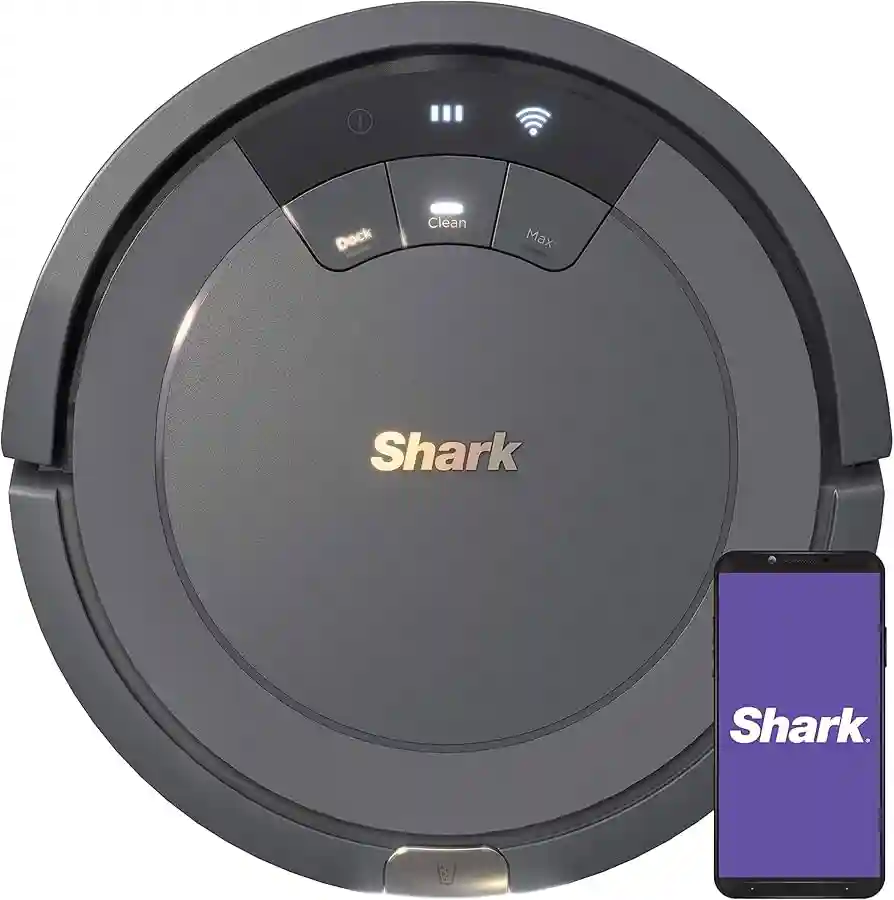
Keeping your floors clean is easier than ever with a Shark robot vacuum. These smart devices do the hard work for you, picking up dust, hair, and debris while you relax or focus on other tasks. But, to keep your Shark robot vacuum performing at its best, you must know how to charge it correctly. Charging may seem simple, but there are important steps, details, and common mistakes that can make the process smooth—or frustrating. This guide will walk you through everything you need to know about charging a Shark robot vacuum, from setting up the dock to troubleshooting charging problems. Whether you are new to robot vacuums or want to avoid errors, you will find clear advice and practical tips here.
Understanding Your Shark Robot Vacuum’s Charging System
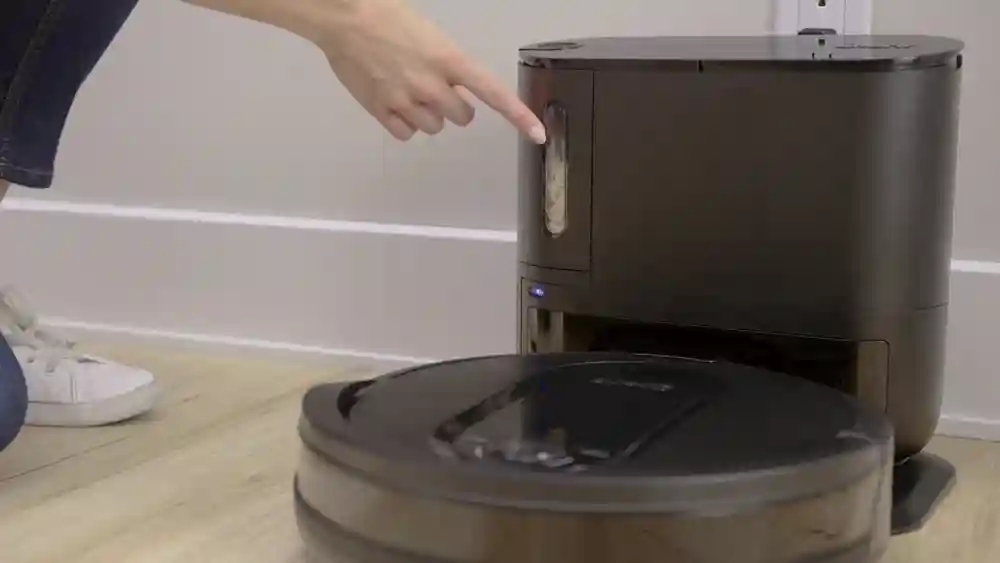
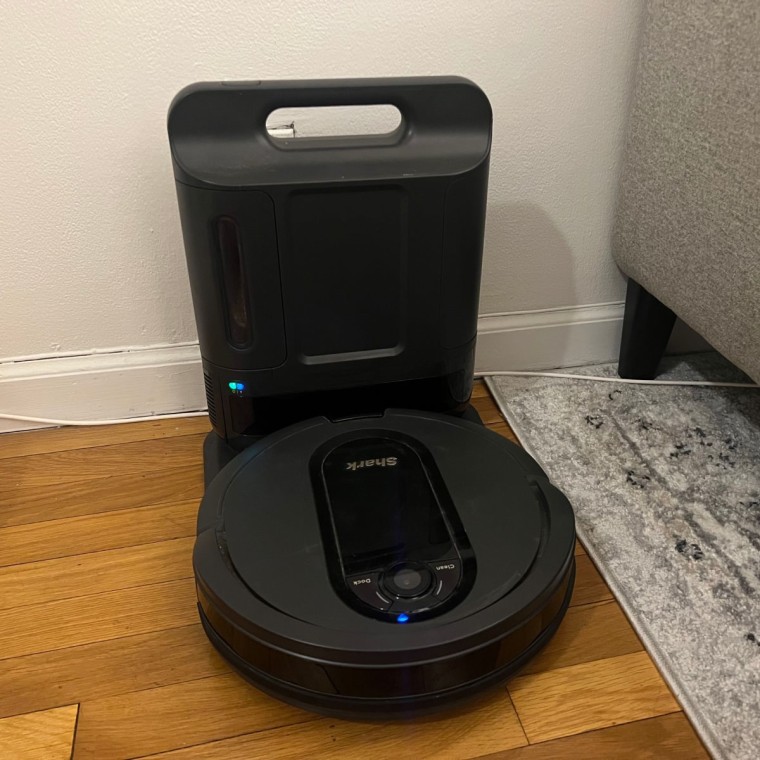
The first thing to know is how the charging system works. Most Shark robot vacuums use a charging dock (sometimes called a base station) that plugs into a wall outlet. The vacuum has metal contact points that touch matching contacts on the dock. When these connect, the vacuum battery recharges.
Some models can also be charged manually with a cable, but this is rare. The charging dock is the main method, and it is designed for convenience. The robot will return to the dock by itself when the battery is low or when it finishes cleaning.
Charging Dock Placement
The location of your dock is more important than many users realize. Here is why:
- The robot uses sensors to find the dock. If the dock is in a tight corner or near stairs, the robot may not “see” it.
- Obstructions, such as furniture or rugs, can block the robot’s path.
- Power cords should not be tangled or stretched across walkways.
A good rule is to leave at least 3 feet of space in front of the dock and 1 foot on each side. Place the dock on a hard, flat surface—not on carpet or uneven flooring. This helps the robot align its charging contacts correctly.
How The Charging Process Works
The Shark robot vacuum uses a lithium-ion battery. When the robot returns to its dock, it starts charging automatically. Most models have a light that indicates charging status:
- Solid light: Charging or fully charged
- Flashing light: Charging in progress or error (check your manual)
- No light: Not charging (may be a connection problem)
Charging from empty to full usually takes between 3 and 6 hours, depending on the model and battery size.
Step-by-step: Charging Your Shark Robot Vacuum For The First Time
If you just bought a Shark robot vacuum, follow these steps to start charging it safely and efficiently.
1. Unpack The Vacuum And Charging Dock
Remove all packaging materials from the robot and dock. Check that you have the main unit, the dock, the power adapter, and the user manual. Some models include extra side brushes or filters—set these aside for now.
2. Find The Best Place For The Dock
Choose a location with access to a wall outlet. Avoid placing the dock near stairs, under furniture, or in direct sunlight. Place the dock against the wall and ensure the front and sides are clear.
3. Plug In The Dock
Connect the power adapter to the dock and plug it into the outlet. The dock should show a small indicator light (usually white or green) to show it has power.
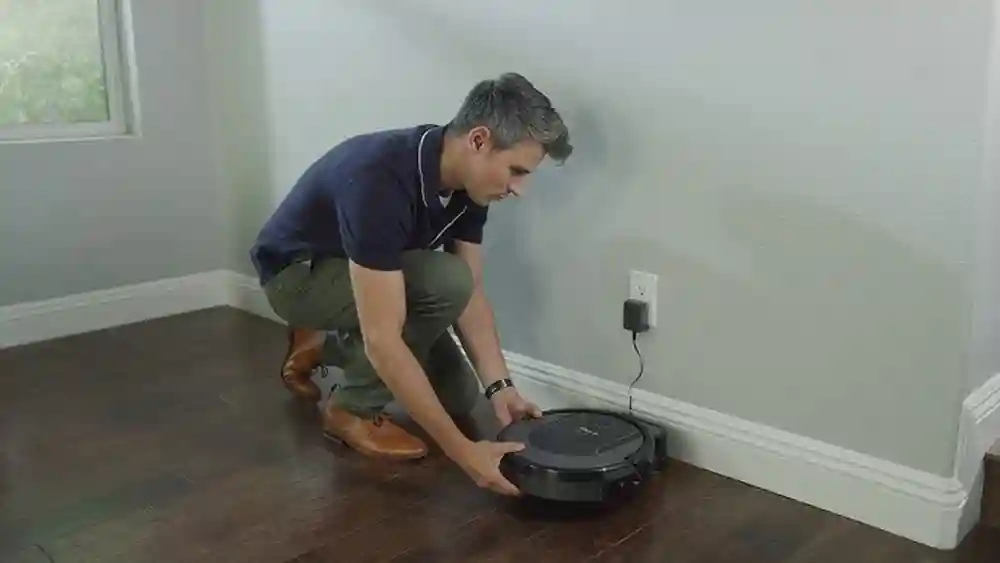
4. Place The Robot On The Dock
Lift the robot and align its contact points with those on the dock. Gently place it down until you hear a small click or see the charging light come on. If you do not see a light, adjust the robot’s position.
5. Allow Full Charging
Let the robot charge until the indicator shows a full battery. For the first use, a full charge can take up to 6 hours. It is best to leave the robot on the dock for a few hours after the light turns solid to ensure maximum battery health.
6. Download And Connect The App (if Supported)
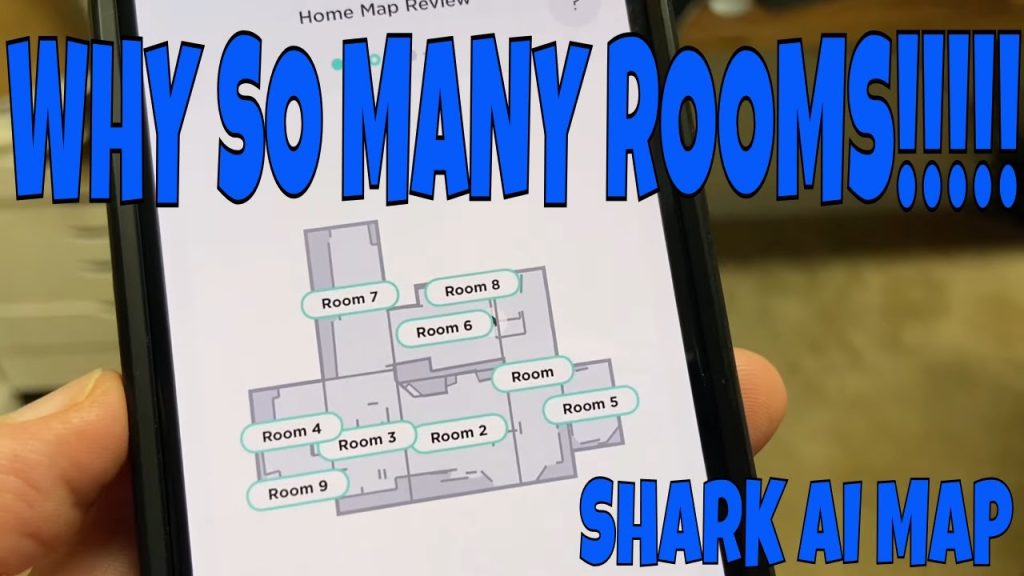
Some Shark models work with an app. Connecting the robot to Wi-Fi can give you more control, like setting schedules or checking battery status. Follow the app instructions to finish setup.
Daily Charging Habits For Best Performance
Charging your Shark robot vacuum is not a one-time task. To keep it running well, develop good charging habits.
Always Return To The Dock
After every cleaning, the robot should return to the dock by itself. If it gets stuck or does not return, move it manually to the dock. Do not let the battery run out completely; this can shorten battery life over time.
Keep The Dock Plugged In
Some users unplug the dock to save energy, but this is not recommended. The robot will not charge, and it may lose its cleaning schedule or Wi-Fi connection.
Clean Charging Contacts Regularly
Dust and dirt can build up on the metal contacts of both the robot and the dock. Wipe these gently with a dry cloth every week to keep charging efficient.
Avoid Overcharging Myths
Modern Shark robot vacuums have smart charging systems. You do not need to worry about overcharging. The robot will stop charging when full, so it is safe to leave it on the dock.
How Long Does Charging Take?
Charging time is one of the most common questions. The answer depends on your model and battery condition. Most Shark robot vacuums take 3 to 6 hours for a full charge. Some newer models may charge a bit faster.
Here’s a comparison of charging times for popular Shark robot models:
| Model | Battery Type | Charging Time | Run Time |
|---|---|---|---|
| Shark IQ Robot | Lithium-ion | 5-6 hours | Up to 90 min |
| Shark AI Robot | Lithium-ion | 4-5 hours | Up to 120 min |
| Shark ION Robot | Lithium-ion | 3-4 hours | Up to 60 min |
If your robot is taking much longer, it may be a sign of a battery problem or dirty contacts.
Signs Your Shark Robot Vacuum Is Charging Properly
How do you know if your robot is charging the way it should? Look for these signs:
- Charging indicator light is on (check your manual for your model’s exact light pattern).
- The robot makes a soft sound or “chime” when placed on the dock.
- The app (if used) shows charging status.
- After charging, the robot can clean for the normal time.
If you see a flashing or red light, check your manual—this usually means a problem.
Common Charging Problems And How To Fix Them
Even with the best setup, sometimes your Shark robot will not charge as expected. Here are common charging issues and how to solve them.
The Robot Does Not Find The Dock
- Make sure the dock is in an open area.
- Remove objects that might block the sensors.
- Check that the dock is plugged in and the indicator light is on.
- Clean the robot’s sensors with a dry cloth.
The Charging Light Does Not Turn On
- Lift the robot and reposition it on the dock.
- Clean the charging contacts (both robot and dock).
- Try plugging the dock into a different outlet.
- Inspect the power adapter for damage.
The Battery Drains Quickly
- Make sure the robot is fully charged before use.
- Replace the battery if it is over 2 years old or not holding a charge.
- Keep the robot and dock clean to ensure full contact.
The Robot Stops Charging Before Full
- Reset the robot by turning it off and on.
- Update the app or firmware if available.
- Contact Shark customer support if the problem continues.
Manual Charging: When And How To Use It
Most Shark robot vacuums use the dock, but some older or special models can be charged directly with a power cable. This is called manual charging.
- Only use the manual method if the dock is broken or missing.
- Use the original Shark charging adapter.
- Plug the adapter into the robot’s charging port (usually covered by a small flap).
- Wait for the charging light to appear.
Manual charging is slower and less convenient. Always return to dock charging when possible.
Caring For The Battery: What You Need To Know
The battery is the heart of your Shark robot vacuum. With proper care, it can last for years. Here’s what helps and what hurts battery life:
What Helps Battery Life
- Keep the robot on the dock when not cleaning.
- Charge in a cool, dry place—avoid extreme heat or cold.
- Clean charging contacts regularly.
What Hurts Battery Life
- Allowing the battery to drain completely often.
- Leaving the robot in a hot garage or direct sunlight.
- Using the robot on very thick carpet (uses more power).
If your robot’s run time drops by half or more, it may be time for a battery replacement. Replacement batteries are available from Shark and authorized dealers.
When To Replace The Battery
No battery lasts forever. Most Shark robot vacuum batteries last 2 to 3 years with normal use. Signs you need a new battery:
- The robot does not clean as long as before.
- It shuts off before finishing cleaning.
- The charging light blinks or shows an error.
Replacing the battery is usually easy. Open the battery cover, remove the old battery, and install the new one. Be sure to buy an original Shark battery for best results.
Charging And Scheduling: Using The Shark App
If your Shark robot vacuum has Wi-Fi and app support, charging is even easier to manage.
- The app shows current battery level and charging status.
- You can set cleaning schedules so the robot only cleans when fully charged.
- You can receive alerts if the robot fails to charge or needs attention.
Some models support “Recharge and Resume”, where the robot returns to the dock during cleaning, charges, then finishes the job. This is helpful for large homes.
How Charging Affects Cleaning Performance
A well-charged battery means better cleaning. If the battery is weak, the robot may:
- Miss areas or stop before finishing.
- Lose suction power.
- Fail to return to the dock.
To keep cleaning performance high:
- Charge after every use.
- Do not interrupt charging unless needed.
- Clean filters and brushes to reduce battery drain.
Advanced Charging Tips Most Users Miss
Here are some lesser-known tips that can make charging your Shark robot vacuum more reliable:
- Check for software updates. Firmware updates can fix charging bugs and improve battery management.
- Use a surge protector for the dock. Power spikes can damage the charging circuit over time.
- Avoid charging near Wi-Fi routers. Strong wireless signals can sometimes interfere with the robot’s sensors or app connection.
Another advanced tip: If you travel or do not use the robot for weeks, store it with the battery charged to about 50%. This reduces battery aging compared to storing fully charged or empty.
Credit: www.youtube.com
Safety Precautions When Charging
Safety is important with any device that uses electricity.
- Only use the original Shark charger and dock.
- Do not use extension cords or power strips with the dock.
- Keep the dock away from water, sinks, or bathtubs.
- If you notice a burning smell or the robot feels hot, unplug it and contact Shark support.
Lithium-ion batteries are safe, but treating them well prevents accidents.
Comparing Shark Robot Vacuum Charging With Other Brands
How does Shark compare to other robot vacuum brands? Here is a quick look:
| Brand | Charging Time | Average Run Time | Special Charging Features |
|---|---|---|---|
| Shark | 3-6 hours | 60-120 min | Recharge & Resume (select models) |
| iRobot Roomba | 2-3 hours | 75-120 min | Recharge & Resume, Smart Mapping |
| Eufy | 4-6 hours | 100 min | Auto Return to Dock |
| Roborock | 4-6 hours | 90-180 min | Multi-level Mapping, Fast Charging |
Shark’s charging speed is about average, but its reliability and “Recharge and Resume” feature make it a strong choice for busy homes.
Troubleshooting: What To Do If Your Shark Robot Vacuum Won’t Charge
If your robot will not charge, do not panic. Try these steps:
- Check the power outlet. Plug another device in to make sure the outlet works.
- Inspect the dock’s power light. If it is off, try a different outlet or adapter.
- Clean all charging contacts. Even a little dirt can prevent charging.
- Remove and reinstall the battery. Sometimes this resets the connection.
- Restart the robot. Turn it off for 30 seconds, then back on.
- Check for error codes. The app or manual will explain what different lights mean.
- Contact Shark support. If nothing works, your robot may need professional repair.
Myths About Charging Robot Vacuums
Many users believe myths about charging. Let’s clear up the most common ones:
- “Leaving my robot on the dock will overcharge it.” False. Modern robots stop charging when full.
- “I should let the battery drain to zero before charging.” Not for lithium-ion batteries; this shortens their life.
- “Any charger will work.” No. Only use the official Shark charger to avoid damage.

Credit: www.reddit.com
Environmental Factors That Affect Charging
Where you charge your Shark robot vacuum can make a difference. Here are things to watch for:
- Temperature: Batteries charge best between 50°F and 85°F (10°C to 29°C). Too hot or cold reduces charging speed and battery life.
- Humidity: High humidity can corrode charging contacts. Keep the dock in a dry place.
- Sunlight: Direct sunlight can overheat the battery or fade sensors.
If you live in a humid climate, check the dock for rust or water damage every few months.
Choosing A Replacement Dock Or Battery
If you lose or break your dock or battery, always buy an official replacement. Third-party parts may not fit or could damage your robot.
- Look for the model number on your robot and order from Shark’s website or a trusted dealer.
- Avoid used docks or batteries—they can be worn out or unsafe.
For more on this, see the official Shark customer support page.
Charging And Long-term Storage
If you need to store your Shark robot vacuum for a long time (vacation, moving, etc.):
- Charge the battery to about 50%.
- Turn off the robot (switch under the cover or on the side).
- Store in a cool, dry place.
- Every 3-6 months, recharge to 50% to keep the battery healthy.
Never store the robot with a completely empty battery.
Expert Tips For Reliable Charging
Here are a few more advanced tips most new users miss:
- Label your dock’s power adapter if you have many devices at home. This prevents using the wrong charger.
- Check for software updates in the app every few months.
- Schedule cleaning when you are not home. This ensures the robot always returns to the dock and stays charged.
If you have pets, clean the contacts more often—pet hair can block the connection.
Frequently Asked Questions
What Do The Charging Lights Mean On My Shark Robot Vacuum?
The lights on your Shark robot vacuum show different charging states. A solid white or green light usually means the robot is charging or fully charged. A blinking light can mean it is still charging or there is a problem. A red light often signals an error. Check your user manual for your model’s exact light meanings.
Can I Leave My Shark Robot Vacuum On The Dock All The Time?
Yes, you can and should leave your Shark robot vacuum on the dock when not in use. The battery will not overcharge, and this keeps the robot ready for cleaning at any time. The charging system is designed to stop charging when the battery is full.
How Long Does The Battery Last In A Shark Robot Vacuum?
Most Shark robot vacuum batteries last 2 to 3 years with normal use. Over time, the battery’s run time will decrease. If you notice the robot stops cleaning early or the battery drains fast, it may be time to replace the battery.
My Shark Robot Vacuum Won’t Charge. What Should I Do?
First, check that the dock is plugged in and the power light is on. Clean the charging contacts on both the robot and dock. Try a different outlet. Make sure the robot is seated correctly on the dock. If none of these work, remove and reinstall the battery or contact Shark support.
Is It Safe To Use A Third-party Charging Dock Or Battery?
It is not recommended. Only use official Shark charging docks and batteries. Third-party parts may not fit correctly, charge properly, or could damage your robot vacuum.
Charging your Shark robot vacuum is simple, but paying attention to details makes a big difference. With the right setup, habits, and a little routine care, your robot will stay charged and your floors will stay clean. Taking the time to understand how charging works ensures your investment lasts for years—giving you both clean floors and peace of mind.
Credit: www.nbcnews.com