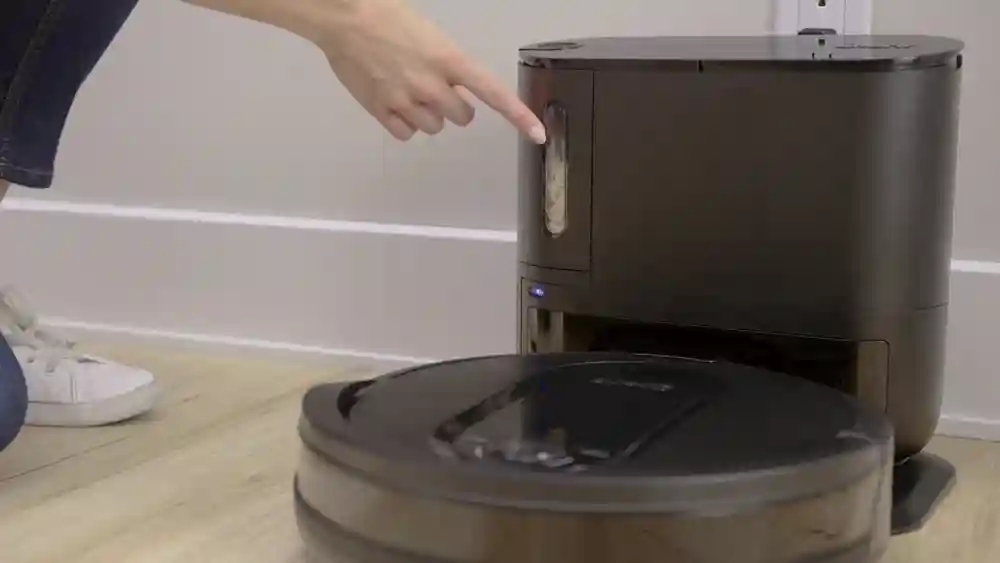
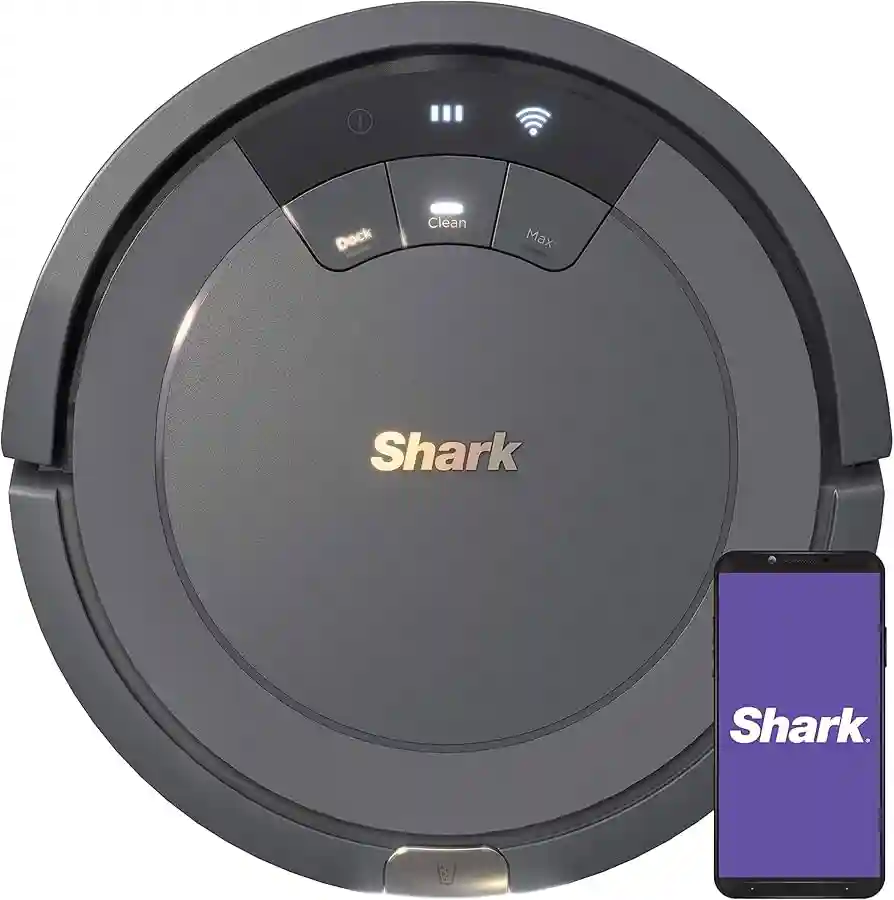
To connect your Shark robot to Alexa, enable the Shark Clean skill in the Alexa app and link your accounts.
I have spent years testing smart home devices, and there is nothing quite as satisfying as telling your vacuum to start cleaning while you are still tucked under your blankets. Learning how to connect Shark robot to Alexa is a straightforward process, but it can be frustrating if you skip a step. Through my own trial and error with various home automation setups, I have found that the secret lies in ensuring your robot is already fully configured in the native app before attempting to bridge the connection. By following this guide, you will master the integration quickly, allowing you to control your home's cleanliness with just your voice.

Initial Setup Requirements
Before you can successfully connect Shark robot to Alexa, you must ensure the foundation is solid. Your robot vacuum needs to be fully operational within the Shark Clean app first. If you cannot control the vacuum using your phone, Alexa will not be able to find or manage the device either.
- Make sure your robot is fully charged and connected to your home Wi-Fi network.
- Ensure you have the latest version of the Shark Clean app downloaded and logged into your account.
- Verify that your Amazon Alexa app is updated to the most recent version.
- Keep your Shark robot name simple in the app, such as Kitchen Vac or Sharky, to help Alexa recognize it easily.

Linking Your Accounts to Enable Voice Control
Once the robot is set up, you need to tell Alexa how to talk to your vacuum. This is done through the Skill store inside the Alexa mobile application. This process establishes the digital handshake between your vacuum and your smart speaker.
- Open the Alexa app on your smartphone and tap on the More icon located in the bottom right corner.
- Select Skills and Games from the menu options.
- Use the search icon to look for Shark Clean.
- Once the Shark Clean skill appears, tap on it and select Enable to Use.
- You will be redirected to a login page where you must enter your Shark Clean account credentials.
- After you sign in, authorize the link, and Alexa will prompt you to discover your devices.

Discovering Your Shark Robot Vacuum
If the previous step does not automatically pop up with a discovery window, do not panic. This is a common hurdle when you learn how to connect Shark robot to Alexa. You can manually force the system to find your hardware by performing a device discovery scan.
- Tell your smart speaker by saying, Alexa, discover my devices, or navigate to the Devices tab in the Alexa app.
- Tap the plus icon and select Add Device.
- Choose Vacuum as the device type and select Shark from the list of manufacturers.
- Wait for the app to scan your network for your connected robot vacuum.
- Once identified, tap the vacuum name to finalize the setup and start using voice commands.

Practical Tips for Daily Use
After you learn how to connect Shark robot to Alexa, the real fun begins. I find that naming my vacuum something specific helps when I have multiple smart devices. If you name it simply, you can avoid confusion when issuing commands like, Alexa, tell Shark to clean the living room.
- Use clear, concise language when speaking to your Alexa device.
- If you have a multi-floor home, ensure your robot is in the correct area before starting a session.
- Check your Wi-Fi signal strength, as a weak connection can cause the vacuum to become unresponsive to voice commands.
- If the vacuum stops responding, try disabling and re-enabling the skill, as this often clears out lingering communication errors.
Frequently Asked Questions of how to Connect Shark Robot To Alexa
Why is Alexa saying my Shark robot is unresponsive?
This usually happens due to a temporary Wi-Fi drop or the vacuum being in sleep mode. Ensure your robot is charged and properly connected to your local network before trying the command again.
Can I control specific rooms with Alexa?
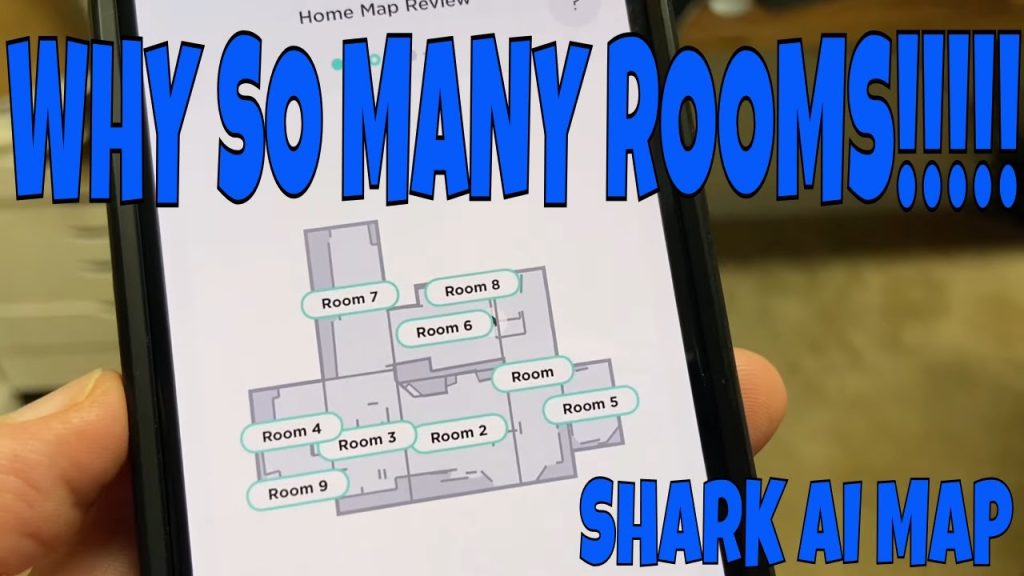
Yes, if your Shark robot supports map features and you have named your rooms in the Shark Clean app, you can ask Alexa to clean a specific area. Ensure your room names are distinct to avoid confusion.
How many robots can I connect to one Alexa account?
You can connect multiple robots as long as they are all registered to the same Shark Clean account. Just give each vacuum a unique name in the app so Alexa can distinguish between them.
Do I need to re-link my account if I change my Wi-Fi?
Yes, if you change your network settings, you will likely need to reconnect your robot to the Shark Clean app first. Once the robot is back online, the Alexa skill should typically reconnect automatically.
Is there a monthly fee to use Alexa with my Shark?
No, there are no subscription fees associated with connecting your Shark vacuum to Alexa. It is a free feature provided by Shark and Amazon to enhance your smart home experience.
Conclusion
Mastering the connection between your vacuum and your voice assistant is a game changer for home maintenance. By following these steps to learn how to connect Shark robot to Alexa, you have moved one step closer to a fully automated and hands-free home environment. Remember to keep your apps updated and your device names simple for the best performance. If you run into any issues, double-checking your account permissions in the Alexa app is often the fastest way to resolve them. Now that you are set up, feel free to explore more advanced routines in your Alexa app to schedule cleanings automatically. If you found this guide helpful, try setting up a daily cleaning schedule today and let me know how much time you save!