If you own a Shark vacuum, keeping it charged is essential for smooth cleaning. But sometimes, you’re not sure if it’s actually charging or if something’s wrong. Maybe you see a light blinking. Maybe there’s no light at all. You wonder—should you leave it plugged in? Is the charger working? These questions are common for Shark vacuum users, especially those using a cordless or robot model. This article will help you confidently know if your Shark vacuum is charging, explain what to watch for with different models, and show you what to do if something seems off. As someone who’s spent years troubleshooting appliances, I’ll share insights beginners often miss, so you never get caught with a dead vacuum at the wrong time.
Why Charging Matters For Your Shark Vacuum
A charged vacuum is ready when you are. Most modern Shark vacuums are either cordless or robotic, which means they rely on lithium-ion batteries. These batteries need proper charging for good performance and a long lifespan. Charging your vacuum correctly can also prevent battery damage and save you from expensive replacements. Many users ignore small charging problems, not realizing that regular incorrect charging can shorten battery life by up to 50%. So, understanding your vacuum’s charging process is not just about convenience—it’s about protecting your investment.
Beyond performance, a properly charged vacuum can clean more thoroughly, cover larger areas, and maintain suction power. If you use your vacuum for quick daily cleaning, being able to rely on a full battery is essential—especially in homes with kids or pets where dirt and crumbs build up fast.
Lithium-ion batteries, found in most Sharks, are sensitive to how you charge them. Overcharging, deep discharging, and extreme temperatures can all reduce their life.
Another point many users miss: If you let a lithium battery fully discharge and leave it empty for days, it may never recover to its full strength. That’s why understanding your charging process matters not only for the present but for your vacuum’s future. The cost of a new Shark battery often runs $50 or more, so every good charging habit directly saves you money.
Types Of Shark Vacuums And Their Charging Systems
Before you can check if your Shark vacuum is charging, you need to know which kind you have. Shark makes several types:
- Cordless stick vacuums (like Shark ION, Rocket, Vertex)
- Robot vacuums (like Shark IQ, RV series)
- Handheld vacuums (like Shark Wandvac)
- Corded models (which do not require charging)
Each type uses a different charging method. Let’s break down how they work.
Cordless Stick Vacuums
Cordless stick vacuums usually have a removable battery or a built-in battery. You either place the whole vacuum on a charging dock, or remove the battery and charge it separately.
Some models, like the Shark ION, have a dock where you set the vacuum upright and leave it to charge. Others, like the Vertex, have a removable battery you can slide out and plug into a wall charger. Removable batteries are convenient if you want to buy a spare and swap them for longer cleaning sessions.
Robot Vacuums
Robot vacuums automatically return to their dock to recharge. Their charging is automatic, but you need to recognize the indicators.
The robot’s dock should always be plugged in and placed against a wall in an open area, so the robot can find it easily. Some users don’t realize that moving the dock confuses the robot, making it harder for it to return and charge.
Always keep the dock in the same spot to avoid charging interruptions.
Handheld Vacuums
These are usually placed on a charging base, and a light shows their charging status.
Handheld models are popular for cars, stairs, and small messes. They’re compact, but their batteries are smaller, so charging indicators are extra important—you don’t want to grab it for a quick job only to find it empty.
Corded Models
Corded vacuums plug directly into an outlet and do not require charging. If you have a corded Shark, you can skip the rest of this guide.
Below is a comparison of how the main Shark vacuum types are charged:
| Shark Vacuum Type | Charging Method | Charging Indicator |
|---|---|---|
| Cordless Stick | Dock or plug-in | LED light/bar |
| Robot | Auto dock | LED ring/light |
| Handheld | Charging base | LED light |
Knowing your vacuum type is the first step toward understanding its charging signals and troubleshooting any problems.
General Signs That Your Shark Vacuum Is Charging
Every Shark vacuum shows some sign when it’s charging. Here are the most common indicators:
- LED lights: Most models have a light or bar that glows or blinks during charging.
- Changing light color: Some lights are orange/red when charging, green/blue when fully charged.
- Blinking patterns: A slow or steady blink usually means charging; a rapid blink can mean an error.
- Sound cues: Some robot vacuums beep when they start or finish charging.
- App notification: For smart models, you may get a notification on your phone.
Some models even combine several signals. For example, a Shark robot might flash its LED ring and beep once, while also sending a message to your phone if you use the Shark app.
If you see none of these, your vacuum might not be charging. But each model is a little different, so let’s go deeper by type.
A subtle detail: On some models, the indicator light is small and placed on the side or bottom—easy to miss if you don’t look closely. If you’re unsure, check all around your vacuum or refer to the manual’s charging section.
How To Check Charging Status On Cordless Stick Shark Vacuums
Cordless stick vacuums are popular for their flexibility. But their charging indicators aren’t always obvious. Here’s how to tell if yours is charging:
Common Models And Their Charging Lights
Most Shark cordless sticks have an LED light near the battery or on the vacuum body. Here’s what the lights usually mean:
- Solid blue/green light: Fully charged
- Flashing blue/green light: Charging in progress
- No light: Not charging (or not plugged in)
- Flashing red or orange: Error or battery problem
For example, with the Shark ION F80, you’ll see a blinking blue light during charging. When it’s done, the light stays solid.
If you own a Vertex Cordless, you might notice a battery bar graphic instead of a simple light. As the vacuum charges, the segments light up one by one until the bar is full.
Battery Bar Display
Some newer models show a battery bar. It fills up as charging progresses. If you see the bar moving or “growing,” your vacuum is charging.
For instance, if you start with one bar and, after an hour, see two or three bars, that’s a good sign. If the bar never increases, your vacuum may not be charging.
Removable Battery Chargers
If your vacuum uses a removable battery, check the charger directly. Most chargers have a light that turns red when charging and green when finished.
One thing beginners often overlook is that the removable battery must be firmly seated in the charger. If it’s not clicked in all the way, the light may not come on, and the battery will stay empty.
What If There Is No Light?
If you plug in your vacuum and see no light:
- Check the power outlet with another device.
- Ensure the charging contacts on the vacuum and charger are clean.
- Try a different charger if you have one.
Also, remember that some Shark models have a “sleep mode” to save energy—the charging light may turn off after a few minutes, even though charging continues. To check, unplug and replug the charger. The light should briefly come on again.
Tip beginners miss: Sometimes, the light turns off after a few minutes to save energy, but charging continues. Check your manual for your model’s behavior.
If you’re ever unsure, let the vacuum charge for a full cycle and then try using it. If it works for the expected amount of time, charging is happening—even if the light is off.
How To Know If Shark Robot Vacuum Is Charging
Robot vacuums are smart, but their charging indicators can confuse many users.
Docking And Charging
When a Shark robot vacuum finishes cleaning or is low on battery, it returns to its charging dock. Here’s how to know it’s charging:
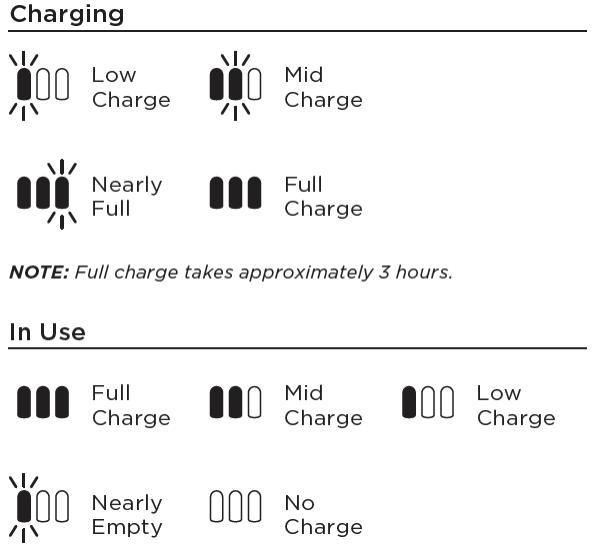
- LED ring or light: Most models (like the Shark IQ) have an LED ring that pulses or glows when charging.
- Docking beep: Some models make a sound when they connect with the dock.
- Charging icon on the robot’s screen: Some premium models show a battery icon.
If your robot doesn’t return to the dock, check for obstacles or move the dock to a more open location. Sometimes, thick carpet or rugs can prevent the dock’s contacts from aligning properly.
What The Lights Mean
- Pulsing or blinking white/blue light: Charging
- Solid white/blue light: Fully charged
- No light: Not charging (or sleep mode)
- Blinking red/orange: Charging problem or docking issue
On some robots, the “charging” pulse is slow—about once per second. If you see a fast blink or a red ring, consult your manual. These signals often warn of dirty contacts, a misaligned dock, or a battery issue.
Using The Shark App
If your model is Wi-Fi enabled, you can check charging status in the Shark Clean app. It will show “Charging” or “Fully Charged. ”
The app can also alert you if the robot fails to dock or if it detects an error, which is useful if you’re away from home.
Common Mistake
Many beginners think the robot is charging just because it’s on the dock. But if the dock is unplugged, or the contacts are dirty, no charging occurs even though the robot is docked. Always check the light and listen for the docking beep.
A less obvious issue: If you move the dock while the robot is out cleaning, it may get lost and never find the dock again. Always return the robot to the dock by pressing the “Dock” button on the vacuum or in the app if you move the dock’s location.
Charging Contacts
Check the metal contacts on both the dock and robot. Dust or debris can stop charging. Wipe them gently with a dry cloth if the robot isn’t charging.
Sometimes pet hair or even a film of dust can block the connection. If your robot is used in a kitchen or near pets, clean the contacts once a week for best results.
How To Tell If A Shark Handheld Vacuum Is Charging
Handheld models like the Shark Wandvac are popular for quick cleanups. Their charging system is usually straightforward.
Charging Base Indicator
You place the handheld unit on its charging base. Watch for:
- Solid blue or green light: Fully charged
- Pulsing or blinking blue/green: Charging
- No light: Not charging
If your handheld has a removable battery, be sure it’s inserted correctly before placing it on the base. A misaligned battery won’t charge.
Battery Health Tips
If you leave your vacuum on the base all the time, the light may turn off after a full charge. This is normal and helps protect the battery. But if you see a red or flashing light, check the battery or the charger.
A less-known detail: Some handhelds will not charge if the dust cup or filter isn’t locked in place. After cleaning, make sure all parts “click” before putting the vacuum back on the base.
Insight beginners miss: Some handheld models won’t charge if the dust cup or filter is not seated correctly. Always reassemble the vacuum properly before charging.
If your handheld takes much longer to charge than usual, or never reaches full charge, the battery may be reaching the end of its life.
Credit: sharkcleanapac.zendesk.com
How Long Does It Take To Charge A Shark Vacuum?
Charging time depends on the model, battery type, and age of the battery. Here’s a general idea:
- Cordless stick vacuum: 3–5 hours for a full charge
- Robot vacuum: 3–6 hours (some may take longer on first charge)
- Handheld vacuum: 2–3 hours
If your vacuum takes much longer, or never fully charges, the battery may be failing.
Here’s a quick comparison of charging times:
| Model Type | Typical Charging Time | Full Run Time |
|---|---|---|
| Cordless Stick | 3–5 hours | 20–40 minutes |
| Robot Vacuum | 4–6 hours | 60–120 minutes |
| Handheld | 2–3 hours | 10–20 minutes |
Important: The first charge after buying your Shark vacuum may take longer. After that, charging usually speeds up.
Another detail: If your battery is old or has been stored empty for a long time, the first few charges might not last as long as you expect. With regular charging, the battery can “wake up” and improve, but if the run time stays low, it’s time for a replacement.
Troubleshooting: If Your Shark Vacuum Is Not Charging
Sometimes, even after following all the steps, your Shark vacuum doesn’t charge. Here’s what you can do to fix it.
1. Check The Power Source
Plug something else (like a phone charger) into the same outlet. If it doesn’t work, the problem is the outlet.
2. Inspect The Charger And Cables
Look for damage, bent pins, or frayed wires. If you see any, replace the charger.
3. Clean The Charging Contacts
Use a dry cloth to clean both the vacuum and the dock contacts. Dirt can block the charge.
For stubborn buildup, a cotton swab with a small amount of rubbing alcohol can help—just be sure everything is dry before charging again.
4. Check Battery Placement
For removable batteries, make sure they’re inserted correctly. If the battery is loose or not clicked in, it won’t charge.
5. Reset The Vacuum
Some models have a reset button. For robot vacuums, you can often reset by holding down the power button for 10 seconds.
A reset can clear internal errors that block charging, especially after a power surge or if the vacuum froze during use.
6. Replace The Battery
If your vacuum is old, the battery may be worn out. Most Shark batteries last 2–3 years with regular use. If your vacuum no longer holds a charge, it’s time for a new battery.
7. Call Shark Support
If nothing works, contact Shark customer support. Sometimes, a warranty replacement is possible.
Pro tip: Don’t try to open the battery or charger yourself. This can void your warranty and is dangerous.
A mistake some users make is trying to “reset” the battery by freezing or heating it. Never do this—lithium batteries can explode or leak if mistreated.
Common Charging Problems And How To Fix Them
Let’s look at the most frequent charging problems and what causes them.
Problem: No Light When Charging
- Possible causes: Broken charger, faulty battery, dirty contacts, bad outlet
- What to do: Test the outlet, try another charger, clean contacts, replace battery
Problem: Blinking Red Or Orange Light
- Possible causes: Battery error, overheating, damaged battery
- What to do: Let the vacuum cool down, remove and reinsert battery, replace battery if needed
Problem: Light Turns Off Quickly
- Possible causes: Full charge, energy-saving mode, charging error
- What to do: Check vacuum after a few hours. If it works normally, it was just saving energy.
Problem: Vacuum Does Not Hold Charge
- Possible causes: Old battery, frequent deep discharge, high heat exposure
- What to do: Replace battery, avoid letting battery fully discharge each time
Here’s a quick reference for troubleshooting:
| Symptom | Likely Cause | Solution |
|---|---|---|
| No light | Charger/outlet issue | Check outlet, replace charger |
| Flashing red/orange | Battery problem | Let cool, replace battery |
| Light off after charging | Full charge/energy saving | Test vacuum, check manual |
| Not holding charge | Worn battery | Buy new battery |
A less-obvious issue: Sometimes, a faulty charger can damage a good battery. If you replace the battery and the problem remains, try a new charger before replacing more parts.
Tips For Maximizing Battery Life And Charging Efficiency
How you charge your Shark vacuum affects how long the battery lasts. Here are proven tips:
1. Don’t Let The Battery Fully Discharge
Lithium-ion batteries (used in most Sharks) last longer if you recharge before they are completely empty. If possible, recharge when the battery drops below 30%.
If you run the vacuum until it shuts off every time, the battery will lose capacity faster.
2. Use The Right Charger
Always use the charger that came with your vacuum. Using a random charger can damage the battery and void your warranty.
Chargers are designed to supply a specific voltage and current. A mismatch can overheat or undercharge the battery.
3. Keep Charging Contacts Clean
Wipe the metal parts on the vacuum and charger regularly. Dirty contacts reduce charging speed and can stop charging altogether.
4. Avoid Extreme Temperatures
Don’t charge your vacuum in very hot or cold places. High heat can permanently damage lithium batteries.
If you live in a hot climate, avoid charging in direct sunlight or near heaters. If it’s cold, try charging indoors rather than in a garage or basement.
5. Store Properly
If you won’t use your vacuum for several weeks, store it with the battery at about 50% charge. This helps prevent battery stress.
For long-term storage, remove the battery from the vacuum if possible and store it in a cool, dry place.
Extra insight: Some users think fast chargers are better. But for Shark vacuums, a slow, steady charge is safest for the battery.
Also, don’t worry about “overcharging. ” Most modern Shark vacuums have protection circuits to stop charging automatically once the battery is full.
Credit: www.reddit.com
Model-specific Charging Indicators
Each Shark vacuum model can have its own charging signals. Here’s a closer look at the most popular ones.
Shark Ion F80
- Charging: Blinking blue light
- Fully charged: Solid blue light
- Error: Blinking red light
Shark Rocket Cordless
- Charging: Pulsing green light
- Fully charged: Solid green light
- Error: Solid red light
Shark Vertex Cordless
- Charging: Moving battery bar
- Fully charged: Solid battery bar
- Error: Blinking orange bar
Shark Iq Robot
- Charging: Pulsing white LED ring
- Fully charged: Solid white ring
- Error: Blinking red ring
Shark Wandvac Handheld
- Charging: Pulsing blue light
- Fully charged: Solid blue light
- Error: Pulsing red light
Beginner mistake: Assuming all models use the same color codes. Always check your vacuum’s user manual or the Shark website for your model.
If you’re ever unsure, search for your exact Shark model number plus “charging indicator” online—you’ll find user guides and videos showing exactly what to expect.
Using The Shark App To Check Charging Status
If you have a smart Shark vacuum, the Shark Clean app makes things easier.
How It Works
- Connect your vacuum to Wi-Fi.
- Open the app on your phone.
- Check the status: It will say Charging or Fully Charged.
Benefits
- Get alerts if the vacuum is not charging.
- See battery level even when away from home.
- Schedule cleaning when the battery is full.
A bonus: The app can remind you to clean the filter or empty the dustbin, which helps maintain battery life.
What To Watch For
If the app always says “Charging” but the battery never reaches 100%, you may have a battery problem.
Good to know: Sometimes the app needs an update. If you see strange readings, update the app first.
If the app loses connection to your vacuum, try restarting your Wi-Fi router or reconnecting the vacuum to the network.
Credit: www.youtube.com
When To Replace The Battery
Batteries do not last forever. Here’s how to know when it’s time for a new one:
- Vacuum won’t turn on after charging
- Very short run time (less than half of original)
- Battery gets hot while charging
- Error light stays on
Most Shark batteries last 2–3 years with normal use. If your vacuum is older, a fresh battery often restores full performance.
When buying a new battery, use only genuine Shark replacements. Off-brand batteries may fit but can cause charging errors and void your warranty.
Another sign it’s time for a new battery is if the vacuum works for only a few minutes even after a full charge. This indicates the battery can no longer hold energy.
Safety Tips For Charging Shark Vacuums
Charging is usually safe, but mistakes can cause problems. Protect your vacuum and home with these safety steps:
- Place the charger and vacuum on a flat, dry surface.
- Do not cover the charger or vacuum while charging.
- Unplug the charger if you see smoke, smell burning, or the charger feels very hot.
- Keep children and pets away from the charger.
- Never use a damaged charger or battery.
Non-obvious insight: Charging in a well-ventilated area keeps the battery cool and extends its lifespan.
If you ever see swelling or leaking from the battery, stop using the vacuum and contact Shark support immediately.
What To Do If Your Vacuum Still Doesn’t Charge
You’ve tried every step, but your Shark vacuum still won’t charge. Here’s what to do next:
- Check your warranty. Most Shark vacuums have a 1–5 year warranty. If your vacuum is still covered, contact Shark support for repair or replacement.
- Contact Shark support. Have your model number, serial number, and proof of purchase ready. Describe the problem clearly.
- Avoid DIY repairs. Opening the vacuum or battery can be dangerous and void your warranty.
For more, visit the official Shark support site.
If your vacuum is out of warranty, compare the cost of a replacement battery to a new vacuum—sometimes, a sale on a new model is only a little more expensive than a replacement battery.
How To Read Your Shark Vacuum Manual
Every Shark vacuum comes with a manual. If you lost yours, you can download it from the Shark website. The manual explains:
- What the charging lights mean for your model
- How long charging should take
- What to do if you see an error
Tip: Print or save a copy of the manual on your phone for quick reference.
The manual also lists troubleshooting steps for your specific model, which can help you avoid unnecessary repairs or replacements.
Real-world Example: Charging Problems And Solutions
Let’s look at a real-world scenario.
Case: Maria owns a Shark ION stick vacuum. She notices the battery light blinks red when she tries to charge. She checks the charger and outlet—both work with other devices. She cleans the contacts, but the problem remains.
Solution: Maria checks the manual, which says a red blinking light means battery error. She orders a new battery from Shark. After replacing the battery, the vacuum charges normally.
Lesson: Charging lights are not just decorations—they give real warnings. Ignoring them can cost you time and money.
Another example: John’s Shark robot seemed to dock but wasn’t charging. After cleaning the charging contacts on both the dock and robot with a dry cloth, the problem was solved. Sometimes, the simplest fix is all you need.
Quick Checklist: Is Your Shark Vacuum Charging?
Here’s a fast way to check:
- Is the charging indicator light on or blinking?
- Is the charger plugged into a working outlet?
- Are the charging contacts clean?
- Is the battery seated correctly?
- Do you hear a charging beep (for robots)?
- Does the app show “Charging”?
- Is the vacuum fully assembled?
If you answer “no” to any of these, your vacuum may not be charging.
Checking these basics can save you the frustration of an unexpected dead battery when you need to clean.
Environmental Impact: Recycling Old Batteries
Don’t throw old Shark batteries in the trash. Lithium-ion batteries can pollute the environment and cause fires. Take old batteries to a certified recycling center. Many electronics stores accept used batteries.
Important: Never throw batteries in regular trash or fire.
Proper recycling helps recover valuable materials and protects your community from hazardous waste. You can find local recycling centers through your city’s website or by searching online for “battery recycling near me. ”
Frequently Asked Questions
What Does The Blinking Light On My Shark Vacuum Mean?
A blinking light usually means the vacuum is charging. The color and speed of the blink matter. A slow blue or green blink means charging is normal. A fast or red blink means there’s a problem. Check your model’s manual for exact meanings.
How Do I Know If My Shark Robot Vacuum Is Charging Correctly?
When your Shark robot is charging, you’ll see a pulsing or blinking light (usually white or blue) on the robot. You may also hear a beep when it docks. If the light is red or you see no light, check if the dock is plugged in and the contacts are clean.
Why Does My Shark Vacuum Stop Charging Before It’s Full?
If your vacuum stops charging early, the battery may be worn out, or there could be a problem with the charger or contacts. Try cleaning the contacts and using a different outlet. If it still won’t charge fully, you may need a new battery.
Can I Use My Shark Vacuum While It’s Charging?
Most cordless and robot Shark vacuums will not work while charging. You need to wait until charging is complete. For handhelds, never use the vacuum while plugged into the charger.
Where Can I Find Official Shark Charging Instructions?
You can find official charging instructions in your vacuum’s manual or on the Shark Clean official site. Always follow the instructions for your specific model to avoid problems.
---
Knowing if your Shark vacuum is charging isn’t just about watching for a light. It’s about understanding what your model tells you, keeping your battery healthy, and knowing what to do if something goes wrong. With the steps in this guide, you’ll never be surprised by a dead vacuum again. You’ll also save money, avoid battery problems, and get the most from your Shark for years to come.