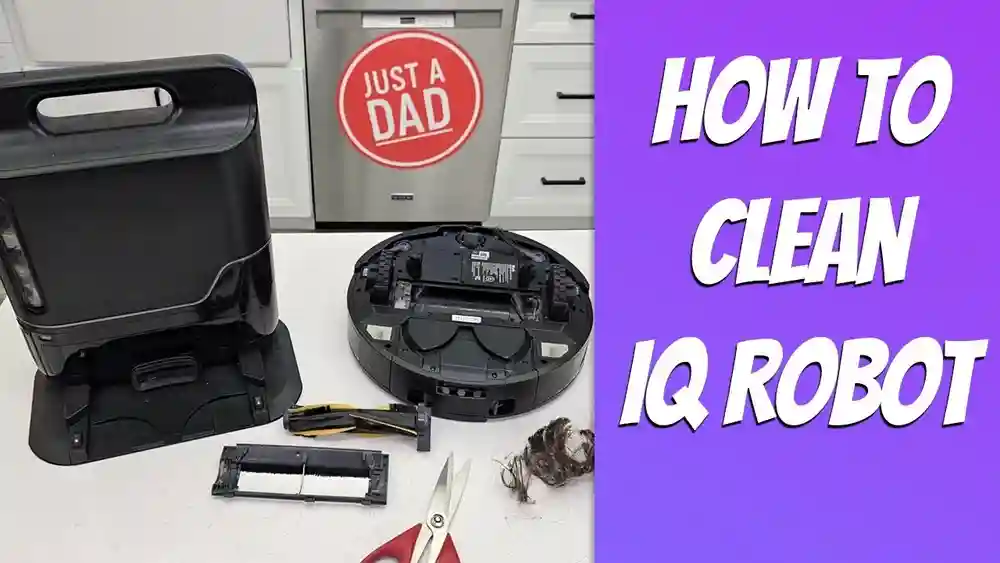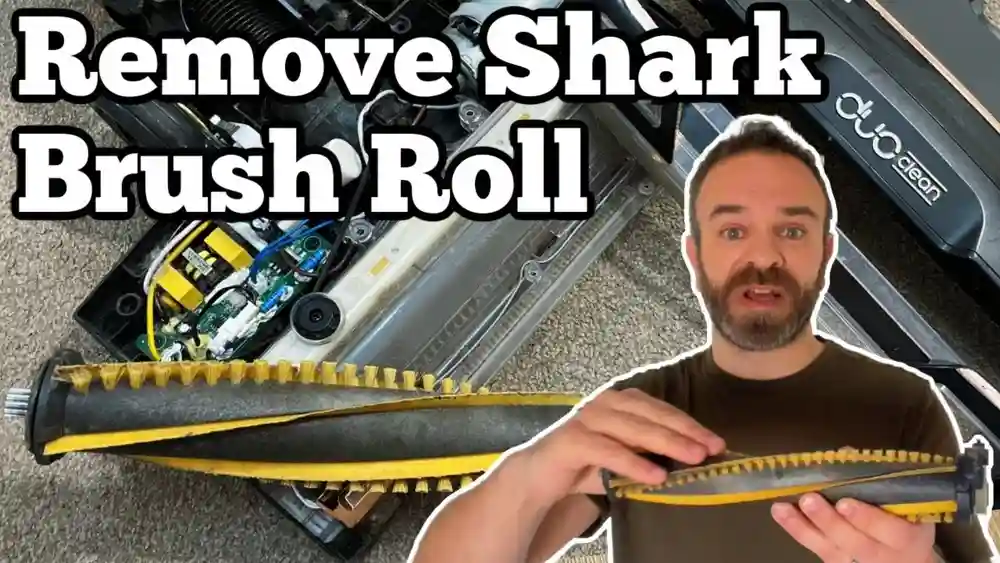

Many people today love smart home gadgets, and robot vacuums are one of the most popular. Shark robot vacuums promise to clean your floors with little effort. Normally, you connect these vacuums to WiFi and control them with your phone or smart assistant. But what if your WiFi is weak, unreliable, or simply not available? Or maybe you value privacy and don’t want your vacuum online. The good news: you can still use a Shark robot vacuum without WiFi. It may not do everything the app can, but it still cleans your home. This guide will show you exactly how to use a Shark robot without WiFi, what works and what doesn’t, and how to get the most from your robot in offline mode.
Understanding Shark Robot Vacuum Models And Offline Features
Shark offers several robot vacuum models. Some have advanced features, while others are more basic. Models like the Shark IQ Robot, Shark ION Robot, and Shark AI Robot all work without WiFi, but the experience can be different depending on which one you own.
When you use a Shark robot without WiFi, you control it mainly with the physical buttons on the device itself. The app and voice features are not available. However, the robot can still:
- Start and stop cleaning
- Return to the dock to charge
- Clean in standard mode (not custom areas)
Some newer models even remember your home’s basic layout after a few runs, though you can’t update or manage maps without WiFi.
Models That Work Well Without Wifi
Most Shark ION and IQ series robots function almost fully offline. The AI models, which have advanced mapping, lose some features without the app, but basic cleaning still works fine.
What You Lose Without Wifi
- No custom cleaning schedules via app
- No map view or room selection
- No remote start from your phone
- No firmware updates (unless you connect later)
- No smart assistant controls (Alexa, Google Home)
Setting Up Your Shark Robot For Offline Use
You don’t need WiFi to start using your Shark robot. The setup is simple and quick. Here’s how to get started:
- Unbox your Shark robot and charging dock.
- Place the dock against a wall with open space (at least 3 feet on each side).
- Plug in the dock and make sure the indicator light is on.
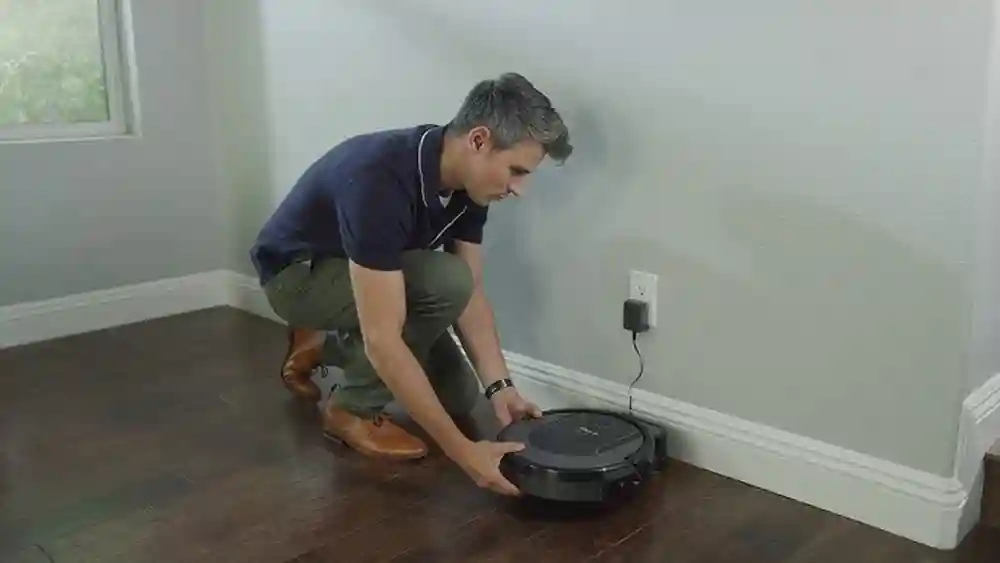
- Set the robot on the dock to charge fully before the first use (usually about 3 hours).
Once charged, you can start cleaning with the push of a button.
Using Shark Robot Without The App
Each Shark robot has physical buttons. Usually, these are:
- Clean (or Power): Starts or stops cleaning
- Dock: Sends the robot back to charge
- Spot: Focuses cleaning on a small area
For example, on the Shark ION Robot, simply press the Clean button to start. The robot will clean the entire reachable area and return to the dock when finished or when the battery is low.
First Cleaning Cycle
On its first run, the robot will move in a random pattern. Some models may seem less efficient on the first few cleans but improve over time as they learn your floor layout, even without WiFi.

Credit: www.youtube.com
Manual Controls And Button Functions
Understanding the physical controls on your Shark robot is key when using it offline. Each button has a clear function:
| Button | Function | Availability (Offline Mode) |
|---|---|---|
| Clean/Power | Start or pause cleaning | Yes |
| Dock | Send robot to charging dock | Yes |
| Spot | Deep clean a small area | Yes |
| Max | Increase suction power | Sometimes (model-dependent) |
Tip: Some models have extra buttons or combinations (like holding down two buttons to reset). Always check your model’s manual for details.
Example: Using The Spot Cleaning Feature
If you spill cereal in the kitchen, carry your robot to that spot. Press the Spot button, and the robot will clean in a spiral pattern, focusing on that small area for a few minutes.
Cleaning Modes Available Without Wifi
Even without WiFi, your Shark robot offers different cleaning modes, though you may have fewer options than with the app. Here’s what you can use:
- Auto/Full Clean: The robot cleans the whole accessible area. This is the default mode when you press the Clean button.
- Spot Clean: Focuses on a small area with intense cleaning.
- Edge Clean (on some models): The robot follows walls and cleans along edges.
You cannot set custom schedules, select specific rooms, or use no-go zones offline. But for regular daily cleaning, these basic modes are often enough.
Performance Data: Offline Vs. Online
Here’s how Shark robots compare in cleaning performance with and without WiFi:
| Feature | With WiFi | Without WiFi |
|---|---|---|
| Auto Clean | Yes | Yes |
| Spot Clean | Yes | Yes |
| Room Selection | Yes | No |
| Scheduling | Yes | No |
| Voice Control | Yes | No |
| Map View | Yes | No |
Scheduling And Automation Without Wifi
One of the main features you lose without WiFi is scheduling through the app. If you want your robot to clean at certain times every day or week, you must start it manually. Some older Shark models (like certain ION robots) have a basic scheduling feature on the device itself, but most modern models do not.
Manual Scheduling Tips
If you want a routine, try these methods:
- Set reminders on your phone or calendar to press the Clean button at a specific time.
- Use a smart plug (if you do not mind a bit of tech): Connect your robot’s dock to a smart plug with scheduling abilities. Schedule the plug to cut power and restore it at certain times; when the dock powers up, some Shark robots will start cleaning automatically (model-dependent). Check your manual first.
Why Shark Removes Offline Scheduling
Modern robot vacuums focus on app-based controls for flexibility. This means offline scheduling is less common, as most users prefer the app. For those who like offline routines, this is a limitation.
Maintenance And Troubleshooting Without Wifi
Using a Shark robot without WiFi means you cannot see error messages or maintenance tips in the app. Instead, you rely on the robot’s lights and sounds. Here’s how to handle maintenance and common issues:
Understanding Indicator Lights And Sounds
Every Shark robot uses light patterns and beeps to signal problems. For example:
- Solid red light: Problem detected (like a stuck brush or full dustbin)
- Flashing blue or white: Charging or searching for dock
- Beeping: Usually signals an error (count the beeps for error codes)
Consult your model’s manual for a full list of light codes.
Cleaning And Maintenance Tasks
- Empty the dustbin after every use (or when the bin is full).
- Clean the main brush and side brushes weekly to prevent clogs.
- Check the filter every 1-2 weeks and wash or replace as needed.
- Wipe sensors gently with a dry cloth every month for better navigation.
Pro Tip: If your robot is acting strange (spinning in circles, not docking), try turning it off and back on. For most models, hold the Power button for 10 seconds to reset.
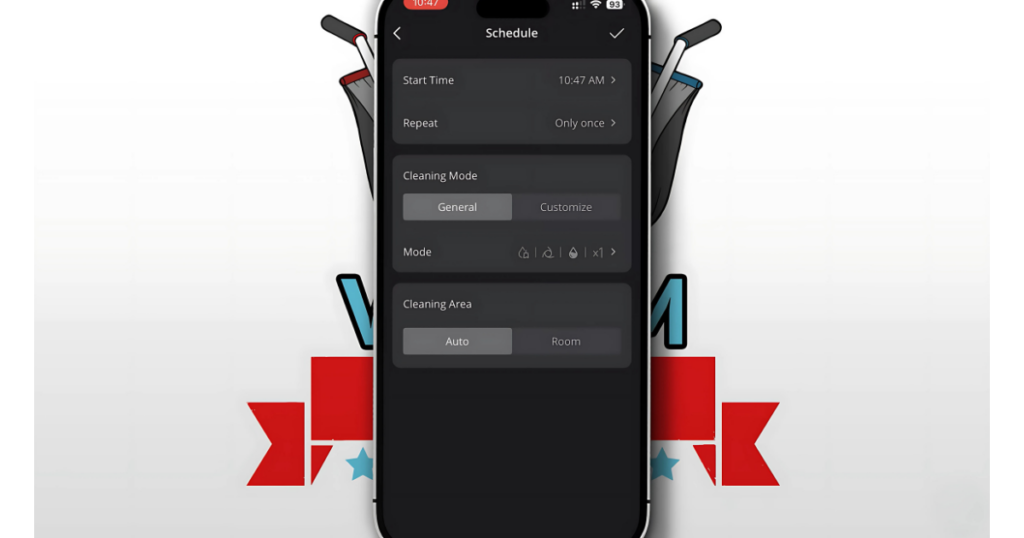
Credit: vacuumwars.com
Offline Mapping And Navigation: What To Expect
Some Shark robots create simple maps while cleaning, even without WiFi. However, you cannot view or edit these maps unless you connect to the app. The robot uses its internal memory to improve navigation over time.
How The Robot Learns Your Home
The robot uses sensors to detect walls, furniture, and obstacles. After a few runs, it may get better at moving around your space, bumping into fewer things. However, you cannot “see” this progress without the app.
Limitations Of Offline Mapping
- No virtual boundaries (no-go zones)
- Cannot name or select rooms
- If you move furniture, the robot must re-learn the area
Safety Tips For Offline Use
Without WiFi, you do not get notifications if your robot gets stuck or tangled. Here’s how to keep cleaning safe and smooth:
- Clear floors of cords, toys, and small objects before starting.
- Block off stairs with physical barriers or the included boundary strips (on some models).
- Keep the charging dock area clear so the robot can find it easily.
- Check on your robot periodically while it cleans.
Advantages And Disadvantages Of Using Shark Robot Without Wifi
Operating your Shark robot offline has both pros and cons. Here’s a closer look:
Advantages
- Privacy: No data is sent over the internet.
- Simplicity: Fewer features, but also fewer things to go wrong.
- No WiFi needed: Great for cabins, basements, or places with poor internet.
Disadvantages
- No scheduling or customization: Must start cleaning manually.
- No app features: Cannot use maps, room selection, or remote controls.
- No software updates: Miss out on improvements and new features unless you connect later.
Real-world Example
A user living in a remote rural area uses a Shark IQ Robot without WiFi. They clean the living room every morning by pressing the Clean button. The robot does a solid job, but sometimes misses under the sofa. Without the app, they cannot set a “clean under sofa” zone, but by moving furniture occasionally, they help the robot cover those spots.
Best Practices For Offline Shark Robot Cleaning
To get the best cleaning results without WiFi, follow these proven tips:
- Start with a tidy space: The fewer obstacles, the better the cleaning.
- Run the robot regularly: Daily or every other day keeps floors cleaner.
- Move the dock if needed: If the robot always misses a room, move the dock closer or carry the robot there.
- Spot clean messes: For spills or heavy dirt, use the Spot mode.
- Monitor wear and tear: Check brushes and wheels for hair or debris.
Uncommon Insight: Manual Multi-room Cleaning
If your home has multiple floors or separated rooms, your robot won’t automatically clean all areas without WiFi. Here’s a trick: After the robot finishes one area, carry it (and its dock) to a new room, plug the dock in, and start cleaning again. This way, you can cover your whole home, even if the robot can’t navigate between rooms on its own.
Offline Shark Robot Use: Myths Vs Reality
Many people think robot vacuums are useless without WiFi. That’s simply not true for Shark robots. Here are some common myths:
- Myth: Robot won’t clean without WiFi.
- Reality: Nearly all Shark robots can clean offline with button controls.
- Myth: You must use the app for every function.
- Reality: The basics (start, stop, dock, spot clean) all work with physical buttons.
- Myth: Offline cleaning is much worse.
- Reality: The main cleaning performance is the same; only smart features are missing.
Surprising Fact
A 2023 study found that over 40% of robot vacuum users in rural areas use their robots offline at least some of the time. The core cleaning function remains strong, making these devices useful even without smart features.
Comparing Shark Robot To Other Brands In Offline Mode
How does Shark stack up against other robot vacuums when used offline? Here is a quick comparison:
| Brand | Offline Cleaning | Physical Controls | Offline Scheduling |
|---|---|---|---|
| Shark | Yes | Yes | Rarely (older models) |
| iRobot Roomba | Yes | Yes | Some models |
| Eufy | Yes | Yes | Yes (physical button) |
| Roborock | Yes | Yes | No |
Insight: Shark’s offline features are competitive, but if offline scheduling is critical, some Eufy models may be a better fit.

Credit: us.narwal.com
Privacy Considerations: Why Some Users Avoid Wifi
Some people prefer not to connect their Shark robot to WiFi at all. The main reasons include:
- Data privacy: Some worry about data being sent to servers.
- Security: Fewer smart connections mean fewer hacking risks.
- Simplicity: No app means fewer things to set up or troubleshoot.
If privacy is your main concern, running your Shark robot without WiFi is a safe and effective option. Just remember to check for software updates by connecting occasionally if you want the latest features.
How To Reconnect To Wifi Later (if Needed)
If you want to update your robot or use app features, you can connect to WiFi at any time:
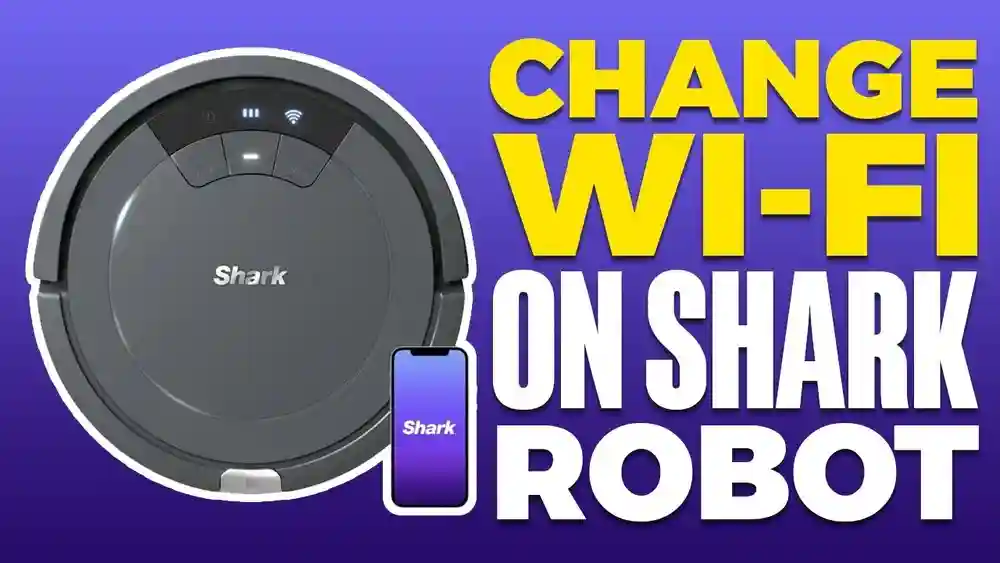
- Download the SharkClean app from your phone’s app store.
- Follow the in-app instructions to connect your robot to WiFi.
- Update firmware or set schedules as needed.
- Disconnect again if you want to return to offline mode.
Note: Firmware updates can improve navigation or add features. Consider connecting every few months for updates, then disconnecting for privacy.
Pro Tips For Maximizing Shark Robot Offline Use
Here are two advanced tips most beginners miss:
- Manual error tracking: Keep a small notebook or phone log of errors (like certain light or beep patterns). Over time, you’ll spot patterns and can fix recurring problems faster.
- Physical barriers: Use furniture, rugs, or included strips to guide your robot, since you cannot set digital no-go zones.
Extra Insight: If you have multiple Shark robots in one home, label them (with a sticker or marker). This prevents confusion, especially since you cannot rename robots in the app when offline.
When Does It Make Sense To Use Shark Robot Without Wifi?
For many users, offline mode is the best choice. Here’s when it makes the most sense:
- You have unreliable or no WiFi
- You want maximum privacy
- You only need basic cleaning
- You dislike using smartphone apps
If you have a large, complex house or want detailed scheduling, the app is helpful. But for small apartments, cabins, or simple needs, offline use is more than enough.
Frequently Asked Questions
How Do I Start My Shark Robot If I Never Connect It To Wifi?
Simply press the Clean button on the robot’s top. It will start cleaning right away, no WiFi or app needed.
Can I Schedule My Shark Robot To Clean At Certain Times Without The App?
Most modern Shark robots do not offer manual scheduling without the app. You’ll need to press the Clean button each time. Some older models may have a physical scheduling button—check your manual.
Will My Shark Robot Learn My Home If It’s Not Connected To Wifi?
It will learn the basic layout using its sensors, but you cannot view maps or set custom areas. Over time, it may get better at navigation, even offline.
Can I Use Multiple Shark Robots In One Home Without Wifi?
Yes, just start each robot with its own Clean button. They do not need WiFi to operate at the same time, but you cannot control or monitor them from one app.
Is There A Way To Get Error Messages Or Updates Without The App?
All errors are shown by the robot’s lights and sounds. Updates require WiFi. If you want the latest features or fixes, you’ll need to connect temporarily using the SharkClean app. For more detailed troubleshooting, visit Shark’s official support.
Using a Shark robot vacuum without WiFi is simple, reliable, and private. While you lose some smart features, the core cleaning abilities remain strong. For many people, especially those with privacy concerns or unreliable internet, offline cleaning is the perfect solution.
Just remember to keep your robot clean, check the manual for model-specific tips, and enjoy a tidy home with less effort.