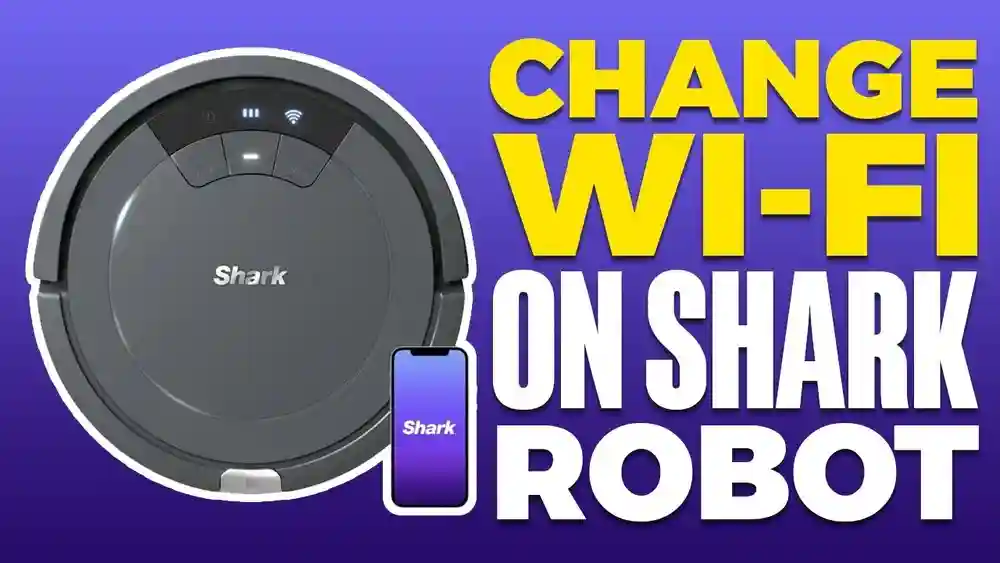
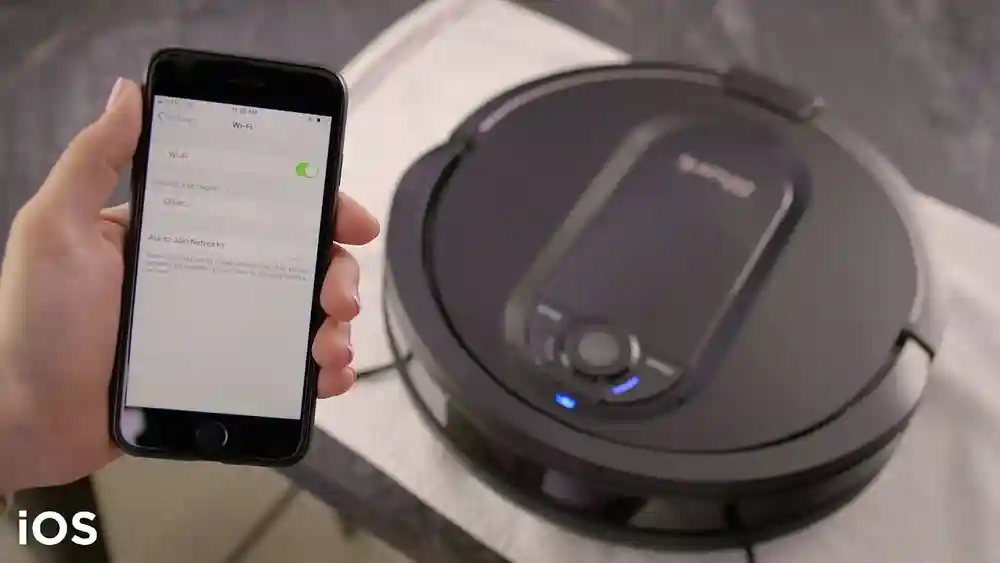
Connecting your Shark Robot to WiFi using the app can transform the way you clean your home. Imagine starting your robot while at work, setting cleaning schedules, or getting alerts when a job is done—all from your phone. But many users find the process confusing at first. If you’ve struggled to connect or want to avoid common mistakes, you’re not alone. This guide will walk you through every step, from preparing your robot and app to troubleshooting WiFi issues. You’ll also find practical tips, clear explanations, and answers to questions many users ask but seldom find in manuals.
Why Connect Your Shark Robot To Wifi?
The benefits of connecting your Shark Robot to WiFi go far beyond just remote control. With the robot on your network, you unlock a suite of smart features:
- App-based scheduling: Clean when you want, even if you’re not home.
- Real-time notifications: Get alerts for cleaning status, errors, or maintenance reminders.
- Voice assistant integration: Control your robot using Alexa or Google Assistant.
- Map editing: For advanced models, customize cleaning zones on your phone.
Without WiFi, you’re limited to manual controls or basic functions. Connecting is essential for a true smart home experience. Plus, you can monitor cleaning progress in real time and even pause or redirect your robot if something comes up at home.
This means more flexibility and less worry about coming home to unexpected messes.
Some users also appreciate being able to check the robot’s battery status and maintenance needs right from the app. You can see if the dustbin needs emptying or if the brush needs cleaning—reminders that help your robot last longer and work better.
Another benefit is the ability to share control with family members. If everyone in your house has the app, they can send cleaning commands or check the robot’s status. This is especially useful in busy households or shared living spaces.
Understanding Shark Robot Models And App Compatibility
Before you begin, it’s important to check your robot model and the app it uses. Not all Shark Robot vacuums support WiFi, and some older models use different apps. Most recent Shark vacuums use the SharkClean app.
Common Shark Robot Models With Wifi
- Shark IQ Robot Series (e.g., RV1001AE, RV101AE, RV1000)
- Shark AI Robot Series (e.g., RV2001, RV2502AE)
- Shark ION Robot Series (e.g., RV750, RV761)
- Shark EZ Robot Series (e.g., RV913S, RV915S)
Older or basic models may not support WiFi. Always check the box or user manual for the WiFi icon. If you bought your robot in the last few years, there’s a good chance it’s WiFi-enabled, but it’s always smart to confirm before you start.
Some models look almost the same but have different features. For example, the RV1000 and RV1001AE both look similar but may have different app support. Double-checking your model number can save you time and frustration.
App Compatibility
Most WiFi-enabled Shark robots use the SharkClean app (available on iOS and Android). Some older models might use the Shark ION Robot app, but this is increasingly rare.
If you’re unsure, search your model number online or visit the official Shark support site. The site has up-to-date lists and can help you download the right app for your robot.
Extra tip: Some users get stuck trying to use the wrong app, so if your robot is not found, double-check both the app and the model.
Credit: medium.com
Preparing For Setup: What You Need
A smooth connection starts with good preparation. Here’s what you need:
1. Charged Shark Robot
Make sure the robot is fully charged and sitting on its dock. Low battery can interrupt the setup.
2. Smartphone Or Tablet
Use a device that supports the SharkClean app. Ensure it’s charged and connected to your WiFi.
3. Stable Wifi Network
Your home WiFi should be 2. 4 GHz (most Shark robots do not support 5 GHz). Test the signal near your robot’s dock. Weak WiFi can cause setup failures.
4. Sharkclean App Installed
Download and install the SharkClean app from the App Store or Google Play.
5. Your Wifi Password
You’ll need to enter this during setup.
Tip: Place your router and robot within 10–15 feet during setup for best results.
If your WiFi signal is weak where the robot will dock, you may want to move your router temporarily or use a WiFi extender. Some users find setup works best in the same room as the router, then move the robot to its final spot later.
Another practical point: update your phone’s operating system and the SharkClean app before starting. Old versions can sometimes cause bugs during setup.
Step-by-step: Connecting Shark Robot To Wifi Using The App
Let’s go through the entire process, from unboxing your robot to seeing it online in the app.
1. Download And Open The Sharkclean App
- Search for “SharkClean” in your phone’s app store.
- Download and install the app. It’s free and usually around 100 MB.
- Open the app and create a Shark account if you don’t have one. Use a valid email.
A valid email is important because you’ll get important notifications about cleaning, errors, and even firmware updates this way. Some users skip account creation, but the app won’t work fully without it.
2. Prepare Your Robot
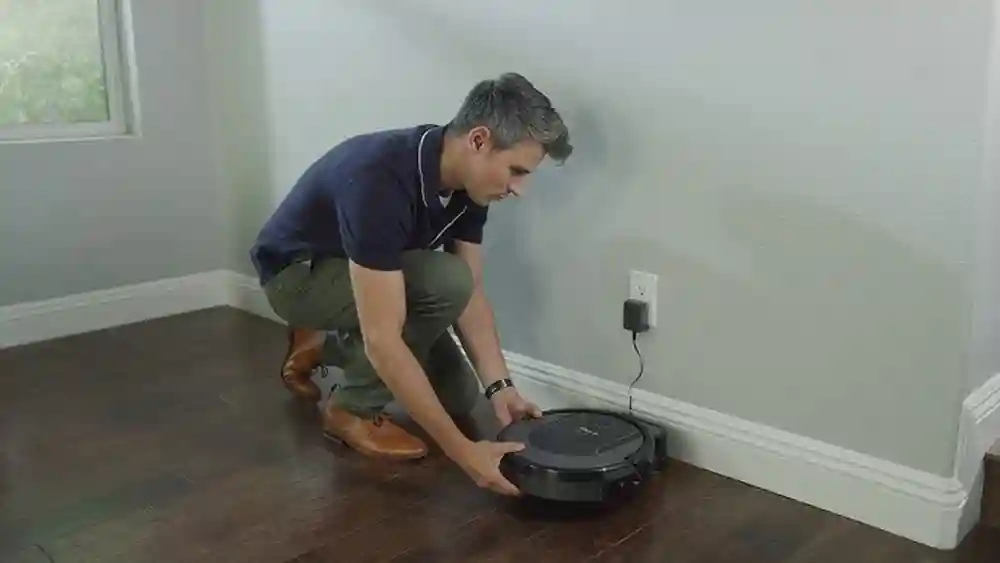
- Place the robot on its charging dock. Ensure the dock is plugged in and the robot’s power switch is ON (usually under the lid or on the side).
- Wait until the battery indicator shows a solid light (not blinking).
If your robot has a removable battery, double-check that it’s inserted properly. Charging can take a few hours if the battery is new or fully drained.
3. Start The Connection Process In The App
- Tap “Add Robot” or the plus (+) sign in the app dashboard.
- Select your robot model from the list.
- Follow the on-screen instructions. The app will prompt you to connect to WiFi.
If you see your robot model grayed out or missing, check the app store for updates or confirm your model supports WiFi.
4. Enable Pairing Mode On The Robot
For most Shark robots, pairing works like this:
- Hold the Dock and Clean buttons (sometimes called “Dock” and “Max”) together for 5 seconds.
- Wait until the WiFi indicator light on the robot blinks (usually blue or white).
- The robot is now in pairing mode.
Note: Some models only require holding the Dock button. If unsure, check your manual.
If you don’t see the indicator light blinking after 5 seconds, keep holding for up to 10 seconds, or try again. Some robots are slow to enter pairing mode, especially after a firmware update.
5. Connect To The Robot’s Temporary Wifi
- The app will ask you to go to your phone’s WiFi settings.
- Find a new network named Shark_Robot_XXXX (XXXX are numbers/letters).
- Tap to connect. You may see a warning about “No internet.” This is normal.
- Return to the SharkClean app.
If your phone tries to automatically switch back to your regular WiFi, turn off “auto-join” or “WiFi assist” in your phone’s settings during setup.
6. Enter Your Home Wifi Details
- The app will prompt you for your home WiFi name (SSID) and password.
- Enter them exactly. Passwords are case-sensitive.
- The robot will attempt to connect to your home network. This takes 30–60 seconds.
If your WiFi network uses special characters or spaces, type them carefully. A single wrong letter or symbol will cause the setup to fail.
7. Confirmation And Naming
- When successful, you’ll see a success message in the app.
- You can now give your robot a name (e.g., “Sam,” “Living Room Bot”).
- The app dashboard should show your robot as “Online.”
Naming your robot is optional, but it helps if you have multiple devices or use voice assistants.
8. Test The Connection
- Try sending a Start or Dock command from the app.
- If the robot responds, setup is complete.
If there’s a delay, wait a few seconds—sometimes the first command takes longer as the robot finishes connecting.
Common Connection Problems And How To Fix Them
Even with clear steps, things sometimes go wrong. Here’s how to handle the most common issues.
Wifi Light Won’t Blink
If the WiFi indicator doesn’t blink:
- Make sure you’re pressing the right buttons.
- Hold them down for a full 5 seconds.
- Check if the robot is fully charged and powered on.
If nothing works, try unplugging the dock for 30 seconds and plugging it back in. Sometimes a simple power cycle resets the robot.
Cannot Find Shark Robot’s Wifi
- Wait 1–2 minutes after entering pairing mode.
- Move your phone closer to the robot.
- Restart your phone’s WiFi.
Some phones have trouble seeing temporary WiFi networks, so toggling airplane mode on and off can help.
Failed To Connect To Home Wifi
- Ensure you’re connecting to a 2.4 GHz network.
- Check that your WiFi password is correct.
- Restart your router.
- Place the dock closer to the router during setup.
If your network uses parental controls or device isolation, disable them until setup is finished.
App Still Shows Robot As Offline
- Force close and reopen the SharkClean app.
- Check if your phone is back on your home WiFi after connecting the robot.
- Try restarting the robot and repeating the process.
If all else fails, delete the app and reinstall it. App bugs sometimes cause “offline” errors even when setup was successful.
Which Wifi Networks Work With Shark Robots?
Shark robots have strict WiFi requirements. Understanding these will save you hours of frustration.
| Feature | Supported | Not Supported |
|---|---|---|
| Frequency | 2.4 GHz | 5 GHz, 6 GHz (WiFi 6E) |
| Security | WPA2, WPA | WPA3 only, Open networks |
| Hidden SSID | No | Yes |
| Guest Network | Sometimes | Enterprise/Hotel logins |
Insight: Many users don’t realize their phone may use 5 GHz, but the robot only sees 2.4 GHz. If you have a dual-band router, temporarily turn off 5 GHz during setup.
Another detail: Some WiFi extenders create separate networks. If you have an extender, connect both your phone and robot to the main router network for setup, then move the robot if needed.
Extra Features After Successful Connection
After connecting, your Shark robot becomes much smarter. Here’s what you can do through the app:
- Schedule cleanings for specific days and times.
- Select rooms or zones (advanced models only).
- Get push notifications for cleaning status and errors.
- View cleaning history and maintenance reminders.
- Integrate with Amazon Alexa or Google Assistant for voice commands.
- Update the robot’s firmware directly from the app.
Tip: Firmware updates often add new features or fix bugs. Always update after connecting.
Some advanced models let you set “no-go” zones or virtual walls, so the robot avoids certain areas like pet bowls or cables. Check your app’s mapping tools for these features.
Troubleshooting: Advanced Issues
Some problems are less obvious. Here’s how to solve them.
Robot Loses Wifi Connection Frequently
- Move the dock closer to your router.
- Check for interference from microwaves or baby monitors.
- Update your router’s firmware.
- Assign a static IP to the robot in your router settings (advanced users).
Walls, floors, and even metal objects can block WiFi signals. If your robot disconnects often, try moving the dock to a central, open area.
App Crashes Or Freezes
- Update the SharkClean app to the latest version.
- Restart your phone.
- Reinstall the app if problems continue.
If you use an old phone or tablet, make sure it meets the app’s minimum requirements. Outdated devices can cause app instability.
After Changing Your Wifi Network Or Password
If you change your WiFi details, you must reconnect your robot:
- Remove the robot from the app (Settings > Remove).
- Reset the robot’s WiFi (repeat the pairing mode process).
- Add the robot again with the new network details.
Insight: Many users forget this step after changing routers, leading to endless “offline” problems.
If you move to a new house or get a new internet provider, the robot will not connect until you repeat setup. Don’t skip this, even if the network name is similar.
Comparing Sharkclean App To Other Robot Vacuum Apps
How does the SharkClean app stack up against other popular robot vacuum apps? Here’s a quick look:
| Feature | SharkClean App | iRobot Home (Roomba) | Ecovacs Home |
|---|---|---|---|
| WiFi Setup | Easy, step-by-step | Slightly easier | Can be tricky |
| Room Mapping | Advanced models only | Most models | Most models |
| Voice Assistant | Alexa, Google | Alexa, Google | Alexa, Google |
| Firmware Updates | Yes | Yes | Yes |
| Scheduling | Yes | Yes | Yes |
| Error Notifications | Yes | Yes | Yes |
Observation: Shark’s app is user-friendly but sometimes lacks detailed mapping on budget models. For most users, the basic functions are easy to access.
If you upgrade to a higher-end model, you’ll get more features in the app. But even the basic SharkClean app covers the essentials for daily cleaning and scheduling.
Practical Tips For A Smooth Connection
To increase your chances of a painless setup, keep these tips in mind:
- Double-check your WiFi password before starting.
- Place the robot and your phone near the router during setup.
- Don’t use a VPN or mobile hotspot during connection.
- If the robot fails to connect, restart everything: Your phone, robot, router, and try again.
- Always update the app before starting.
If you have a mesh WiFi system, set up your robot near the main router node. Mesh systems sometimes make it harder for smart devices to find the correct band.
Write your WiFi password down or save it somewhere safe. Many connection problems come from typing mistakes or using an old password.

Credit: www.reddit.com
What To Do If You’re Still Stuck
If you’ve tried everything above and your Shark Robot still won’t connect:
- Check the official Shark support site for model-specific steps.
- Search for your error message in their FAQ.
- Contact Shark support by phone or email with your model number and a summary of what you’ve tried.
- Consider resetting your robot to factory settings as a last resort (this removes all settings and maps).
Factory reset can be frustrating but sometimes solves deep connection issues. Only do this if you’re comfortable redoing all your settings, including maps and schedules.
Security And Privacy: What Happens When Your Robot Is Online?
When you connect your robot to WiFi, it communicates with Shark’s servers. Here’s what happens:
- The robot sends cleaning status, errors, and some usage data.
- The app receives commands and sends them to the robot.
- Your network password is stored only on your robot, not sent to Shark.
Tip: Always use a strong, unique WiFi password for better security.
Shark follows common security practices, but for extra peace of mind, check your router’s settings for devices connected to your network. You can usually see your robot listed by its MAC address or name.
Real-world Example: A User’s Journey
Let’s look at a typical setup experience.
Maria bought a Shark IQ Robot. She downloaded the SharkClean app, but her robot kept failing to connect. She realized her phone was on the 5 GHz WiFi network, while the robot could only see 2.4 GHz. She switched her phone to the 2.4 GHz network during setup and moved both the dock and her phone closer to her router. The setup finished in under 5 minutes. Maria then named her robot “Dusty” and set a cleaning schedule for weekdays.
This example shows how simple adjustments—like matching WiFi frequency—can solve big problems.
Another user, Dan, had trouble when he moved to a new apartment and changed his WiFi provider. He forgot to reset the robot’s WiFi settings, so it stayed offline. Once he removed the robot from the app and repeated the pairing steps, everything worked again.
These stories highlight that patience and small changes often make the biggest difference.
What Features Can You Control After Connection?
Here’s a quick overview of features you can manage through the app after connecting your Shark robot:
| Feature | Basic Models | Advanced Models |
|---|---|---|
| Start/Stop Cleaning | Yes | Yes |
| Schedule Cleaning | Yes | Yes |
| Room Selection/Mapping | No | Yes |
| Error Notifications | Yes | Yes |
| Voice Control Integration | Yes | Yes |
| Firmware Update | Yes | Yes |
If you’re considering buying a robot, check which features your model supports before connecting.
In addition, some advanced models let you create cleaning routines that match your life. For example, you can set the robot to clean the kitchen every day, but the bedrooms only on weekends. The app’s flexibility grows as you explore its options.
Two Insights Most Beginners Miss
- Temporary WiFi network confusion: Many users panic when their phone says “No internet” after connecting to the robot’s WiFi. This is normal—just return to the app and continue.
- Home network issues: If you have a mesh WiFi system, your phone might jump between bands (2.4 GHz and 5 GHz). Set up your robot when your phone is locked to 2.4 GHz, or temporarily turn off 5 GHz in your router settings.
Another thing beginners often miss: Your robot’s WiFi light will turn solid (not blink) once it is fully connected. If it keeps blinking, something is still wrong.
Maintenance Tips After Connecting
- Check for firmware updates monthly in the app.
- Monitor cleaning brush and bin reminders.
- Reset WiFi if you change routers or passwords.
- Keep your robot’s sensors clean for best navigation.
It’s also wise to clean the robot’s wheels and side brushes every few weeks. Pet hair and dust can build up, making the robot less effective. The app’s reminders help, but regular checks are good practice.
If you notice the robot missing spots or getting stuck often, check the app for error messages or try recalibrating the sensors—many issues are solved by a simple cleaning or reset.
Frequently Asked Questions
How Do I Know If My Shark Robot Supports Wifi?
Look for a WiFi icon on the robot or its box. Most models released after 2018 support WiFi. You can also search your model number on the Shark website.
If you’re still not sure, contact Shark support with your model number for a quick answer.
Why Does My Shark Robot Only Work With 2.4 Ghz Wifi?
Most smart home devices, including Shark robots, use 2.4 GHz because it has better range and compatibility. The 5 GHz band is faster but has shorter range and is not supported by most robot vacuums.
Some high-speed routers default to 5 GHz, so always check your router’s settings if you’re having trouble.
What Should I Do If The Robot Won’t Connect Even After Multiple Tries?
Double-check your WiFi password, ensure you’re on a 2.4 GHz network, and restart your router, phone, and robot. If it still fails, reset the robot’s WiFi settings and try again.
If you see a specific error code, search for it on the Shark support site for targeted advice.
Can I Connect My Shark Robot To Wifi Without The Sharkclean App?
No, you must use the SharkClean app to set up WiFi. After setup, you can use Alexa or Google Assistant, but initial setup requires the app.
If you lose your phone, log in on another device with your Shark account to regain access.
Is It Safe To Connect My Shark Robot To Home Wifi?
Yes, as long as you use a secure WiFi password and keep your app updated. Shark does not store your password on their servers, and data sent is minimal.
For added security, use a guest network for smart devices if your router supports it. This helps isolate your main devices from smart appliances.
Connecting your Shark robot to WiFi is the key to unlocking its smart features. With careful setup and the right troubleshooting, you’ll enjoy hands-free, effortless cleaning—all from your phone. If you hit a snag, remember: most problems come from WiFi band confusion or weak signals. Take it step by step, and soon your home will stay clean with almost no effort.

Credit: www.youtube.com