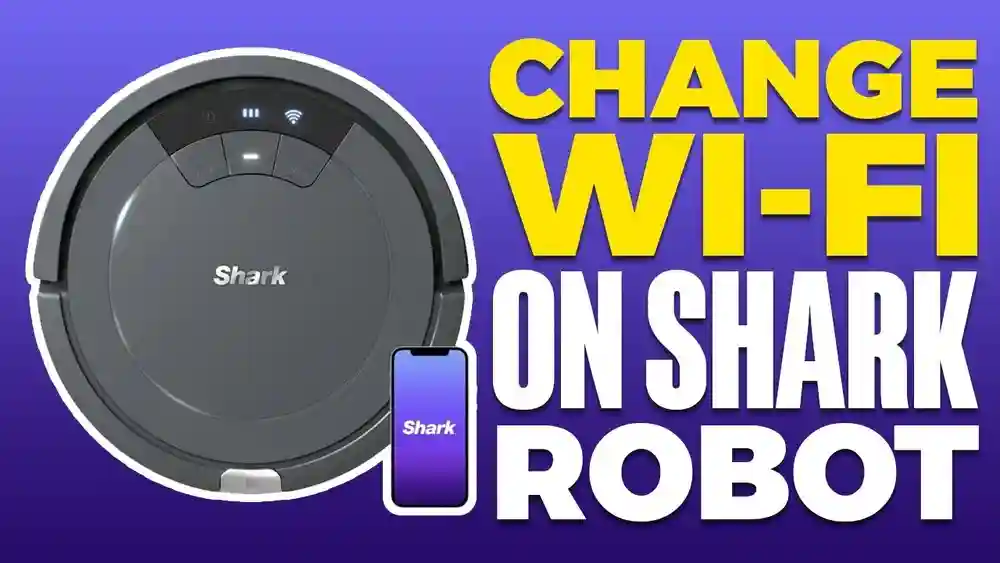
If you own a Shark Ion robot vacuum, you probably appreciate how easy it is to clean your floors using your smartphone. The WiFi connection lets you control the vacuum from anywhere, schedule cleanings, and even get status updates. But sometimes, you may need to disconnect your Shark Ion from your WiFi network.
Maybe you’re moving, changing your router, troubleshooting connection issues, or just want to protect your privacy.
Disconnecting a smart device from WiFi should be simple, but it’s not always obvious. Many users feel frustrated when they cannot find clear instructions or when the robot keeps trying to reconnect. In this guide, you’ll learn every method to disconnect your Shark Ion from WiFi safely and completely.
You’ll also get practical advice, warnings about common mistakes, and answers to questions that most guides miss.
Let’s go step by step so you can take control of your Shark Ion’s WiFi connection, whether you’re a tech expert or just starting with smart home devices.
Why Disconnect Your Shark Ion From Wifi?
There are several reasons why you might want to disconnect Shark Ion WiFi network:
- Changing your WiFi router or password: Your robot can’t connect to a new network until you remove the old one.
- Selling or giving away the vacuum: Disconnecting ensures your personal data and schedules are not accessible.
- Troubleshooting: Connection problems can sometimes be fixed by resetting the WiFi.
- Privacy concerns: Some users prefer limiting which devices are online.
- Reducing network congestion: Fewer devices mean less traffic on your home WiFi.
Understanding your reason helps you pick the best disconnection method. For example, if you plan to reconnect later, choose a method that does not erase all settings.
Some users are also concerned about smart devices collecting data. Even if Shark Ion uses data only for cleaning optimization, knowing your device is offline can give extra peace of mind. For families with children or shared living spaces, disconnecting the device might also prevent accidental remote starts or schedule changes by others using the app.
How The Shark Ion Uses Wifi
Shark Ion robots use WiFi mainly for:
- Remote control through the SharkClean app
- Scheduling cleanings from your phone
- Notifications about cleaning status and errors
- Integration with smart home systems (like Alexa or Google Assistant)
- Firmware updates for new features or bug fixes
The Shark Ion does not require WiFi to clean. You can still use the physical buttons on the robot for basic cleaning tasks. But, you lose advanced features without WiFi.
Not all features are equally important to every user. For example, if you have a simple cleaning schedule and do not need notifications, using the robot offline might not impact you much. But if you travel often and want to start a cleaning cycle from another city, WiFi is essential.
A less obvious benefit of WiFi is that Shark can diagnose some issues remotely if you contact support. If you disconnect, you may need to describe problems in more detail if you ever need help.
What Happens When You Disconnect?
When you disconnect your Shark Ion from WiFi, several things change:
- The robot will not appear in the SharkClean app.
- You cannot control or schedule it remotely.
- It will not send notifications or error alerts to your phone.
- No new firmware updates will be received.
- Voice assistant integrations (Alexa, Google Assistant) will stop working.
However, the robot can still clean your floors using local controls. This is important for users who want privacy but need cleaning to continue.
Many users don’t realize that after disconnecting, scheduled cleanings set in the app won’t run unless you create new schedules directly on the robot (if your model supports it). Also, some error codes or maintenance reminders—like brush roll jams or bin full alerts—will only show up as lights or sounds on the robot, not as clear messages in the app.
If you reconnect later, you’ll need to set up your preferred settings again. It’s a good idea to keep track of your favorite schedules or customizations before disconnecting.
Methods To Disconnect Shark Ion Wifi Network
There are multiple ways to disconnect your Shark Ion from WiFi. Each method has pros, cons, and works best in certain situations. Let’s explore each in detail.
1. Remove The Device From The Sharkclean App
This is the most straightforward method and works for most users.
- Open the SharkClean app on your phone.
- Tap the menu (usually three lines or dots).
- Select Settings or Robot Settings.
- Tap on the robot’s name you want to disconnect.
- Choose Remove Device or Delete Robot.
- Confirm your choice.
After this, the robot is unlinked from your account and WiFi. The vacuum will beep or display a light to show it’s no longer connected.
Key Insights
- Make sure your phone is on the same WiFi network when removing the device.
- Removing the robot also erases schedules and preferences in the app.
- If you want to reconnect, you’ll need to set it up from scratch.
- Don’t forget to check if you have shared device access with anyone else’s account—they may need to remove it too.
2. Factory Reset The Shark Ion
A factory reset wipes all settings, including WiFi. Use this if you are selling, giving away, or having persistent issues.
- Make sure the robot is on and fully charged.
- Press and hold the Dock and Clean buttons at the same time (usually for 10-15 seconds).
- Release when you hear a beep or see all indicator lights flash.
- The robot will reboot. All WiFi and user data are erased.
Important Tips
- Factory reset is permanent. You lose all app schedules and saved maps.
- If the reset fails, check your model—some use different button combinations.
- Keep the robot on its dock during reset for best results.
- After resetting, the robot will behave as if it’s brand new out of the box.
3. Change Your Wifi Network Or Password
If you change your home WiFi name (SSID) or password, the Shark Ion cannot reconnect. This is a passive way to disconnect.
- Update your WiFi name or password in your router’s settings.
- The robot will try to connect and fail. It will eventually stop seeking WiFi.
What Beginners Miss
- The robot will keep blinking the WiFi light, indicating it is searching.
- You can reconnect by re-adding the robot in the SharkClean app with the new network.
- Some routers allow you to create a “guest” network. If you only move your robot to this new guest network, it will lose access to your main home network.
4. Block The Device In Your Router Settings
Advanced users can block the Shark Ion’s MAC address in the router.
- Log in to your router’s admin page (usually by typing 192.168.1.1 in your browser).
- Find connected devices; locate your Shark Ion (look for “Shark” or the MAC address in the app).
- Add the MAC address to the block list or enable parental controls.
- Save settings and reboot the router.
Benefits And Risks
- Device cannot connect, even if you reset it.
- This is reversible—just unblock the MAC address.
- Be careful: Blocking the wrong device can cut off other smart gadgets.
- Some routers show device names as codes—double check the MAC address in your app or robot’s settings label.
5. Forget The Network Via Shark Ion Buttons
Some Shark Ion models let you make the robot forget its network without a full reset.
- Press and hold the WiFi button (or a combination, depending on model) until the WiFi indicator blinks rapidly.
- Release the button. The robot will beep.
- The WiFi light should turn off, showing it is disconnected.
Check your user manual for your model’s exact button combination.
Some users confuse this with a factory reset. The difference is that “forget network” only erases WiFi details, not cleaning history or preferences.
6. Contact Shark Customer Support
If nothing else works, or you have a unique situation, contact Shark support. They can guide you through the process or help with stubborn models.
- Phone support is available in most countries.
- Online chat on the Shark website is quick.
- Be ready to provide your model number and account details.
Support can also help if your app is not showing the right menu, or if your robot is not responding to button commands.
7. Delete The Sharkclean App Account
For total disconnection, delete your SharkClean app account.
- Go to Account Settings in the app.
- Choose Delete Account.
- Follow the confirmation steps.
All data, including WiFi links and schedules, will be erased from the cloud.
Be Cautious
- This action cannot be undone.
- If you own more than one Shark device, all will be removed.
- Make sure to export or write down any important information before deleting.
Comparison Of Disconnection Methods
To help you decide, here’s a comparison of the main methods:
| Method | Difficulty | Data Erased | Reversibility | Best For |
|---|---|---|---|---|
| Remove from App | Easy | App Data | Yes | Most Users |
| Factory Reset | Medium | All Data | No | Resale, Major Issues |
| Change WiFi | Easy | None | Yes | Router Changes |
| Router Block | Hard | None | Yes | Advanced Users |
| Forget Network | Easy | Network Only | Yes | Simple Reset |
| Delete Account | Medium | All Cloud Data | No | Privacy Focused |
Step-by-step Guide For The Most Common Models
Different Shark Ion models may have slightly different controls. Here’s how to disconnect WiFi on the most popular models.
Shark Ion R75
- Hold the Dock and Max buttons together for 15 seconds.
- Wait for the beep and flashing lights.
- Remove from app as described above.
For best results, place the robot on its dock during this process. If you see only a blinking WiFi light after, repeat the steps to be sure.
Shark Ion R85
- Press and hold the Spot and Dock buttons for 10 seconds.
- Release when the WiFi indicator turns off.
- Remove from app.
Some R85 models have a small reset hole—use a paperclip to press it gently if the button combo doesn’t work.
Shark Ion Av751
- Hold Clean and Dock for 10 seconds.
- The robot will beep and reset WiFi.
Always check your manual or the Shark support site for your exact model. If your robot doesn’t reset, try repeating the process or contact support.
What To Do After Disconnecting
After you disconnect your Shark Ion from WiFi, here’s what you should do:
- Test cleaning: Press the physical Clean button to ensure the robot works.
- Check indicator lights: The WiFi light should be off or blinking.
- Update your schedules: If you rely on the app for scheduling, set reminders to clean manually.
- Update other smart home devices: Remove the robot from Alexa or Google Assistant, if used.
- Store your login info: If you plan to reconnect, save your SharkClean account details.
If you’re passing the vacuum to someone else, wipe it down and pack the charger with it. Some users forget to include the dock—this is required for setup in a new home.
Troubleshooting: Common Problems And Fixes
Disconnecting isn’t always smooth. Here’s how to handle issues:
Wifi Light Keeps Blinking
- This means the robot is searching for a network.
- Try a factory reset or forget network function.
- If the light keeps blinking after several resets, check your model’s manual for a different button sequence.
Robot Reappears In App
- This can happen if you only delete the app, not the device.
- Always remove the device before deleting the app.
- If you shared access with family, ask them to remove it too.
Cannot Reconnect Later
- If you factory reset, you must re-add the robot as a new device.
- Make sure your phone is on 2.4GHz WiFi; Shark Ion does not support 5GHz networks.
- Some routers combine both bands under one name. If you have trouble, create a separate 2.4GHz network for setup.
App Shows “robot Offline”
- This is normal after disconnection.
- Ignore or delete the device in the app.
- If you want to hide offline robots, look for “Manage Devices” or “Remove Device” in the app settings.

Credit: www.youtube.com
Privacy And Security Considerations
Many users worry about privacy with smart home devices. Disconnecting your Shark Ion from WiFi can improve your digital safety.
- No data sent to cloud: Your cleaning patterns and home layout are not uploaded.
- Reduced hacking risk: Offline devices can’t be accessed remotely.
- Fewer notifications: No unwanted pop-ups or alerts.
But, you lose convenience features. Weigh the pros and cons based on your needs.
One thing beginners often miss: Even when online, Shark’s privacy policy limits the kind of data shared (see [Shark’s policy](https://support.sharkclean.com/hc/en-us)). However, being offline is the only way to guarantee data isn’t sent.
How To Reconnect The Shark Ion To Wifi
If you want to reconnect your Shark Ion in the future:
- Place the robot on the dock.
- Open the SharkClean app.
- Select Add Robot.
- Follow the on-screen instructions to pair with your 2.4GHz WiFi network.
- Wait for the WiFi light to become solid.
If you have trouble, restart your router and ensure your phone is on the same WiFi band.
If you performed a factory reset, you’ll need to set up your schedules, preferences, and any voice assistant integrations again.
Credit: kismac-ng.org
How Wifi Disconnection Affects Features
Here’s a quick look at what works and what doesn’t after disconnecting:
| Feature | With WiFi | Without WiFi |
|---|---|---|
| Manual Cleaning | Yes | Yes |
| App Control | Yes | No |
| Scheduling | Yes | No (app-based) |
| Notifications | Yes | No |
| Firmware Updates | Yes | No |
| Voice Assistant | Yes | No |
A less obvious downside: If you disconnect, you won’t be able to use future features Shark may add via updates. For users who value staying up-to-date, consider reconnecting once in a while to download updates, then disconnect again.
Best Practices For A Smooth Disconnection
To make the process hassle-free:
- Backup schedules: Write down your app cleaning schedules if needed.
- Keep your manual: User guides often list model-specific reset steps.
- Update family members: Let others in your home know the robot will not work from the app.
- Check warranty: Resetting or deleting your account does not void your warranty.
- Use labels: After disconnecting, label your robot if you have multiple devices to avoid confusion.
- Unpair from smart speakers: Remove the robot from Alexa or Google Home to avoid “device not found” errors.
If you plan to reconnect later, store your network name and password in a safe place. Some users forget their original WiFi info and have trouble when setting the robot up again.

Credit: www.reddit.com
Real-world Example: Why One User Disconnected
Samantha, a Shark Ion R75 owner, moved to a new apartment with a different WiFi provider. She noticed her robot kept trying to connect to her old network, blinking its WiFi light. She tried deleting the app but the robot still blinked and wouldn’t clean on schedule.
After some research, Samantha:
- Removed the device from the SharkClean app.
- Did a factory reset using the Dock and Max buttons.
- Set up the robot again with her new network.
Key lesson: You must remove the device from the app AND reset the robot to fully disconnect, especially when changing homes.
Another example: Mark wanted more privacy after reading about smart device security. He blocked the Shark Ion’s MAC address on his router instead of resetting the vacuum, so he could easily restore it later if needed. He wrote down the MAC address and unblocked it months later when he was ready to use app features again.
Common Mistakes To Avoid
Beginners often run into these problems:
- Only deleting the app: This does not disconnect the robot from WiFi.
- Forgetting to reset after changing WiFi: Robot keeps searching for old network.
- Blocking wrong device on router: Double-check the MAC address.
- Assuming all models are the same: Button combinations can differ.
- Not backing up settings: All schedules are lost after factory reset.
Another mistake is not checking for firmware updates before disconnecting. Some bugs or problems can be fixed with an update—do this before you go offline.
When To Contact Shark Support
If you experience:
- Persistent connection errors
- Robot not responding to resets
- App crashes or cannot remove device
Contact Shark support. They can walk you through advanced troubleshooting or replace a faulty unit.
Support is also helpful if you lost your manual or if your robot behaves differently than described here. Some rare models may need specific steps not found online.
How To Find Your Shark Ion Model Number
Your model number is usually:
- On a sticker under the robot
- In the SharkClean app under device info
- On your purchase receipt or box
Knowing your model helps you find the right reset method.
Some older models have very similar button layouts but different reset sequences. Always confirm before starting.
Firmware And Security Updates
By disconnecting WiFi, your Shark Ion won’t get:
- New cleaning features
- Bug fixes
- Security patches
If you reconnect, check for updates in the app to keep your robot secure and efficient.
It’s a good habit to check for updates every few months if you care about security or performance, then disconnect again if you prefer an offline robot.
Comparing Shark Ion To Other Robot Vacuums
Not all robot vacuums use WiFi in the same way. Here’s a brief comparison:
| Brand | WiFi Required? | Offline Cleaning? | App Features |
|---|---|---|---|
| Shark Ion | No | Yes | Scheduling, Notifications |
| iRobot Roomba | No | Yes | Advanced Mapping |
| Eufy RoboVac | No | Yes | Basic App |
| Roborock | No | Yes | Mapping, Mopping |
Shark Ion is flexible, working both online and offline. This is a plus for privacy-focused users.
Some brands (especially older models) only allow manual cleaning if you disconnect WiFi. Newer robots, including Shark, let you use more features offline, but app-based scheduling and advanced mapping usually require a connection.
Extra Tips For Tech-savvy Users
- Use guest networks for your robot: This limits access to your main home network.
- Monitor network traffic: Some routers let you see if the robot tries to connect after disconnection.
- Use static IPs: Assign a specific IP to your robot for easier management.
- Check for firmware updates before disconnecting WiFi: Stay secure.
- If you’re worried about privacy, check your router’s logs to see if the robot is still trying to reach outside servers even after disconnecting.
Another advanced step is to set up firewall rules on your router, blocking all internet access for your robot but allowing local connections if you want to use some smart features without cloud access.
Resources For Further Reading
For official guides and troubleshooting, visit the Shark Clean Support page.
Frequently Asked Questions
How Do I Know If My Shark Ion Is Still Connected To Wifi?
Check the WiFi indicator light on your robot. A solid light usually means connected, while blinking or off means it is not connected. You can also check in the SharkClean app—if it says “Offline” or does not show your robot, it is not connected.
Can I Use My Shark Ion Without The Sharkclean App?
Yes, you can start, stop, and dock your robot using the physical buttons. However, you lose app-based features like scheduling, notifications, and remote control.
Some models allow basic scheduling directly on the robot, but this is more limited than the app.
Will Disconnecting Wifi Erase My Cleaning History?
Removing the robot from WiFi or deleting your app account will erase cleaning history stored in the cloud. If you just disconnect from WiFi, the robot itself does not store detailed history.
What Should I Do Before Selling My Shark Ion?
Always factory reset the robot and remove it from your SharkClean app account. This keeps your data private and makes setup easier for the new owner.
Including the dock, charging cable, and user manual will help the next user get started quickly.
Is It Safe To Block My Shark Ion On My Router?
Yes, as long as you block the correct MAC address. This stops the robot from connecting to your network, but you can unblock it any time. Double-check to avoid blocking the wrong device.
Disconnecting your Shark Ion from WiFi can give you more control over your privacy and network. By following the steps above and avoiding common mistakes, you can manage your robot just the way you want. Whether you need a temporary disconnect or a full reset, the methods here cover every situation you might face.