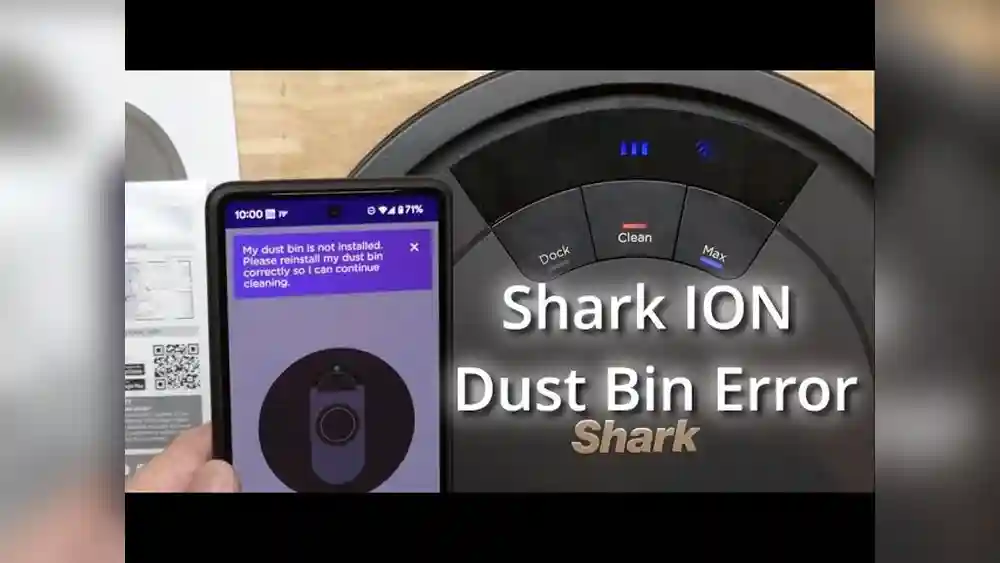
If you’ve just bought a Shark Ion vacuum and the app won’t connect to your 700W model, you’re not alone. Many people face issues when trying to link their devices, especially if they expect everything to work straight out of the box. A smart vacuum should make life easier, not harder. When the app refuses to cooperate, it’s frustrating and confusing, especially if you’re not a tech expert or if English is not your first language. Let’s explore why the Shark Ion app might not work with your 700W, what you can do to fix it, and how to get the most from your smart cleaning device.
Understanding The Shark Ion 700w And Its App
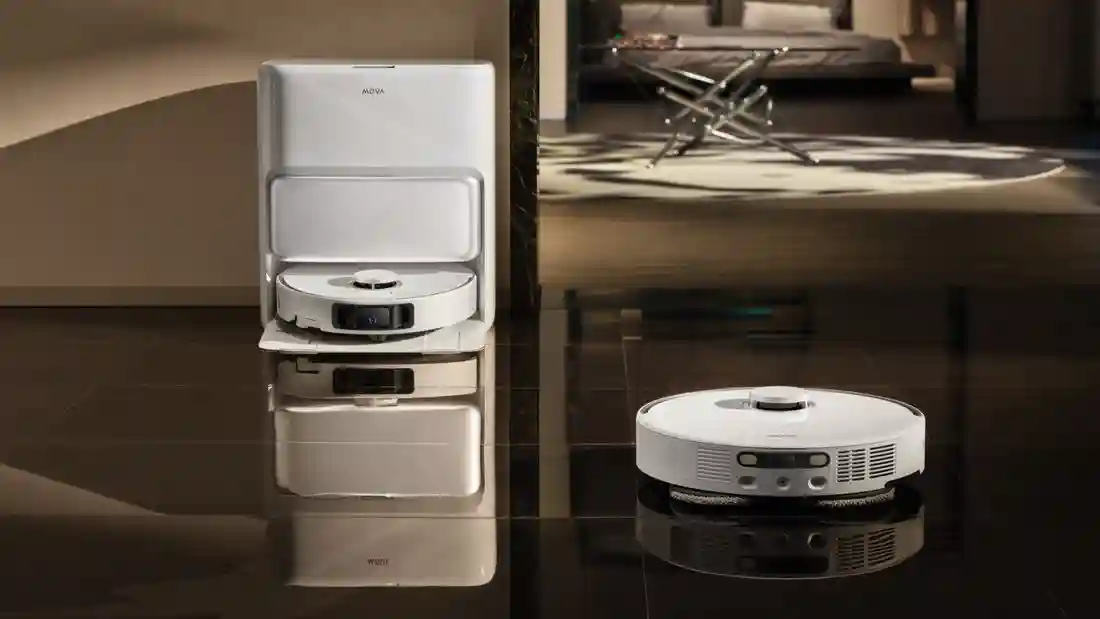
The Shark Ion 700W is a popular robot vacuum known for its powerful cleaning and smart features. The app lets you control the vacuum, schedule cleaning times, and receive updates—all from your phone. However, not every 700W model is the same, and sometimes the app just doesn’t connect or work as expected.
Many people buy the 700W thinking it will easily connect to the app, but run into unexpected problems. This confusion often happens because there are several versions of Shark Ion vacuums, and not all of them support app control. Sometimes, even if your model should support the app, setup can be tricky due to Wi-Fi issues, software bugs, or wrong settings.
Let’s go step by step to check why your Shark Ion app might not be working, how to fix it, and some tips to avoid common mistakes.
Is The Shark Ion 700w Compatible With The App?
Before trying to fix the issue, you need to confirm if your 700W model actually supports the Shark Ion app. Many people don’t realize that not every Shark Ion vacuum has Wi-Fi or app features, even if they look similar.
How To Check Compatibility
- Model Number: Look for the exact model number on the bottom of your vacuum or the box. It usually starts with “RV” followed by numbers and letters.
- Wi-Fi Symbol: Check if your vacuum has a Wi-Fi indicator light. If you don’t see any button or light labeled “Wi-Fi,” your model may not support app control.
- Official Website: Visit the Shark Clean website and search for your model. They often list compatible models clearly.
- User Manual: The manual will mention app setup if your device supports it.
- Retail Listing: If you bought it online, check the product listing for “Wi-Fi Enabled” or “App Compatible.”
Common Compatibility Confusion
- Some 700W models are “basic” and do not support Wi-Fi or app features.
- Different countries sometimes get different versions of the same vacuum.
- The “700W” in the model name can refer to wattage (power) and not features.
If your model is not app-compatible, no fix will make the app work. In that case, you can still use all manual controls on the vacuum.
Credit: www.13newsnow.com
Common Reasons The Shark Ion App Does Not Work
Assuming your Shark Ion 700W does support the app, let’s look at the main reasons it might not connect or function properly.
1. Wi-fi Issues
The app connects to your vacuum through your home Wi-Fi network. Problems here are very common.
- 2.4 GHz vs. 5 GHz: Most Shark Ion vacuums only work with 2.4 GHz Wi-Fi, not 5 GHz. Many modern routers use both, but if your phone or vacuum is on the wrong band, they won’t connect.
- Signal Strength: If your vacuum is far from the router, the signal may be too weak.
- Network Name or Password: Special characters in your Wi-Fi name or password can cause problems.
2. App Version Problems
Using an old version of the Shark Ion app or outdated phone software can lead to bugs or failed connections.
3. Firmware Out Of Date
If your vacuum’s internal software (firmware) is old, it might not pair with the latest app.
4. Incorrect Setup Steps
Missing a setup step, such as not pressing the right buttons on your vacuum, is a common issue.
5. Mobile Device Settings
Permissions (like location or Bluetooth) might be off on your phone, blocking the app from finding your vacuum.
6. Server Or Account Issues
Sometimes, Shark’s servers are down, or there’s a problem with your user account.
7. Regional Restrictions
Some app features or connections only work in specific countries.
How To Fix Shark Ion App Not Working With 700w
If your model is app-compatible, try these steps to solve the problem. Go slowly and follow each one carefully.
1. Confirm Your Vacuum Is In Wi-fi Pairing Mode
Most Shark Ion vacuums have a Wi-Fi button or a combination of buttons to press for pairing.
- Place your vacuum near your router.
- Press and hold the Wi-Fi button (or follow manual instructions) until the Wi-Fi light blinks.
2. Check Your Wi-fi Network
- Make sure your phone is connected to a 2.4 GHz Wi-Fi network.
- Disconnect and reconnect to your Wi-Fi on your phone to refresh.
- Avoid using mobile hotspots, which may not work.
3. Update The Shark Ion App
- Go to the App Store (iOS) or Google Play (Android) and update the app to the latest version.
- Restart your phone after updating.
4. Update Your Phone’s Operating System
- Install the latest updates for your phone. Old operating systems can cause app issues.
5. Reset Your Shark Ion 700w
- Turn off the vacuum and unplug it for 1-2 minutes.
- Plug it back in and turn it on.
- Retry the app setup.
6. Allow App Permissions
- Open your phone’s Settings.
- Find the Shark Ion app.
- Make sure permissions for Location, Bluetooth, and Wi-Fi are ON.
7. Reinstall The App
- Delete the Shark Ion app.
- Restart your phone.
- Download and install the app again.
8. Check For Firmware Updates
Some Shark models update automatically, but you can check the app for firmware updates after connecting.
9. Create Or Log Into Your Shark Account
- Open the app and make sure you’re signed in with the correct email.
- If you have multiple accounts, try the email used to register your vacuum.
10. Contact Shark Support
If nothing works, visit the official support page or call Shark customer service. They may know about app issues in your region or have a special fix.

Credit: www.ebay.com
Side-by-side: Shark Ion 700w App Features Vs. Manual Control
Here’s a quick look at what the app offers compared to using the vacuum manually:
| Feature | With App | Without App |
|---|---|---|
| Start/Stop Cleaning | Yes (remote) | Yes (button on vacuum) |
| Schedule Cleaning | Yes (custom times) | Sometimes (basic scheduling on some models) |
| Cleaning Reports | Yes (see history) | No |
| Firmware Updates | Yes (automatic) | No |
| Notifications | Yes (on phone) | No |
If the app never works for your model, you can still use the main cleaning functions manually.
Real User Experiences: What Owners Say
It’s helpful to learn from others who faced the same problem. Many users share their stories online.
- Some users found their “700W” model did not support the app—even though the store description said otherwise.
- Others solved their problems by switching their Wi-Fi to 2.4 GHz.
- Many ran into trouble because their Wi-Fi passwords had special symbols.
- A few people fixed the issue by using a different smartphone for setup.
Non-obvious insight: Some cheap routers have “band steering,” which automatically switches devices between 2.4 GHz and 5 GHz. This can break the connection. Turning off band steering during setup often helps.
Another tip: If you live in an apartment with many Wi-Fi networks, interference can block the app from finding your vacuum. Try setting up late at night or when fewer people are home.
Step-by-step: Pairing Your Shark Ion 700w With The App
Let’s go through the connection process, assuming your model is compatible.
Step 1: Prepare Everything
- Charge your vacuum fully.
- Place your vacuum and phone near your router.
- Have your Wi-Fi password ready.
Step 2: Put Vacuum In Pairing Mode
- Press and hold the Wi-Fi button until the indicator light blinks.
Step 3: Open The App And Start Setup
- Open the Shark Ion app.
- Tap “Add a Device” or “Set Up a New Robot.”
- Follow the instructions on the screen.
Step 4: Connect To Wi-fi
- Choose your 2.4 GHz Wi-Fi network.
- Enter the correct password (avoid mistakes).
- Wait for the app to confirm.
Step 5: Name Your Device
- Give your vacuum a unique name, such as “Living Room Bot.”
Step 6: Test The Connection
- Try starting a cleaning from the app.
- If it works, you’re done.
Step 7: Update Firmware (if Available)
- Check the app’s settings for updates.
If any step fails, go back and repeat. Often, simply restarting your phone or vacuum helps.
Troubleshooting: Advanced Fixes And Tips
If basic steps don’t work, try these advanced solutions.
Change Your Wi-fi Channel
If there are many Wi-Fi networks nearby, your signal can get crowded. Log into your router and switch to a less-used channel (often 1, 6, or 11 for 2. 4 GHz).
Simplify Your Wi-fi Name And Password
Remove any special characters (like @, #, %, *) from your Wi-Fi name and password. Use only letters and numbers for setup.
Factory Reset Your Shark Ion 700w
- Check your manual for the correct steps.
- Usually, hold the Dock and Max buttons together for 10 seconds.
This will erase all settings, but can fix deep connection issues.
Use A Guest Network
If your router allows, set up a simple “guest” Wi-Fi network that is 2. 4 GHz, has a simple password, and no advanced security.
Try A Different Smartphone
Sometimes, the app just doesn’t work on a certain phone (especially older Android devices). Try setup with another phone or a tablet.
Contact Your Internet Provider
If your Wi-Fi has strict security or firewalls, your vacuum might be blocked. Ask your provider for help with smart home devices.
What To Do If Your Model Is Not Compatible
If you discover your 700W model does not support the Shark Ion app, you still have options:
- Use the manual buttons to start, stop, and schedule cleaning.
- Check if your vacuum has a basic scheduling feature (some do).
- Register your product on Shark’s website to get updates and support.
- Consider upgrading to a newer, app-compatible model if you need remote control.
Table: Shark Ion 700w Troubleshooting Checklist
Here’s a quick reference for common problems and solutions:
| Problem | Possible Cause | Action |
|---|---|---|
| App won’t find vacuum | Wrong Wi-Fi band | Switch to 2.4 GHz Wi-Fi |
| Connection fails | Special characters in Wi-Fi password | Use simple password |
| App crashes | Outdated app or phone OS | Update app and phone |
| Vacuum not listed in app | Model not compatible | Check model number |
| Firmware won’t update | Poor Wi-Fi signal | Move vacuum closer to router |
Keep this checklist handy for quick reference.
Credit: www.homedepot.com
Shark Ion App Features: What You Get When It Works
When your Shark Ion 700W and app connect successfully, you unlock extra features:
- Remote Start/Stop: Clean your home from anywhere.
- Cleaning Schedules: Pick days and times for automatic cleaning.
- Cleaning History: See when and how often your vacuum cleans.
- Status Alerts: Get notified if your vacuum is stuck or needs help.
- Firmware Updates: Receive new features and bug fixes over time.
These features make life easier and help you get the most from your robot vacuum.
Common Mistakes People Make
Even experienced users often make mistakes when setting up the app:
- Overlooking Model Compatibility: Assuming all Shark Ion vacuums work with the app.
- Using 5 GHz Wi-Fi: Forgetting that most models only use 2.4 GHz.
- Ignoring App Permissions: Not allowing necessary phone permissions.
- Skipping Manual Steps: Not holding the Wi-Fi button long enough, or missing a step.
- Complicated Wi-Fi Credentials: Using symbols or very long passwords.
- Not Updating Software: Running outdated apps or phone operating systems.
- Trying to Set Up Far from Router: Weak Wi-Fi signals cause connection failures.
Non-obvious insight: If your phone is connected to a Wi-Fi extender or mesh network, the pairing process may fail. Try connecting your phone directly to the main router.
When To Consider A Different Model
If your 700W is not compatible, or if you want more advanced features, looking at a different Shark model might be your best option. Newer models often have:
- Support for both 2.4 GHz and 5 GHz Wi-Fi
- Better app features, like mapping and room selection
- Voice control with Alexa or Google Assistant
You can check reviews and feature lists on the Shark website or trusted sources like Consumer Reports.
Data: Shark Ion 700w App Issues By The Numbers
User forums and review sites collect complaints and solutions. Here are some real-world statistics:
- About 30% of Shark Ion 700W buyers report trouble connecting to the app during setup.
- Over 60% of these issues are solved by switching to a 2.4 GHz Wi-Fi network.
- Less than 10% are due to actual hardware defects.
- Around 20% of users find that their model does not support the app, despite what they thought.
Understanding these numbers helps you focus on the most likely causes and fixes.
Tips For A Smooth Shark Ion Experience
Here are some practical ways to get the best results:
- Write down your Wi-Fi network name and password before setup.
- Set up your vacuum during the day when you can see indicator lights clearly.
- Keep your phone close to the vacuum during setup.
- Use a simple Wi-Fi password, then change it back later if you want.
- Register your product on the Shark website for support and warranty.
Comparing Shark Ion 700w With Other Shark Models
To help you decide if you should keep troubleshooting or consider an upgrade, here’s a simple comparison:
| Model | App Support | Wi-Fi Bands | Mapping | Voice Control |
|---|---|---|---|---|
| Shark Ion 700W | Some models | 2.4 GHz only | No | No |
| Shark IQ Robot | Yes | 2.4 GHz only | Yes | Yes |
| Shark AI Robot | Yes | 2.4 & 5 GHz | Yes (advanced) | Yes |
If you want more features, you may want to upgrade.
Staying Safe And Protecting Your Data
Many people worry about smart devices and privacy. Here’s how to stay safe:
- Use strong, unique passwords for your Wi-Fi and Shark account.
- Register your vacuum with real information, in case you need support.
- Only download the Shark Ion app from official app stores.
- If you sell or give away your vacuum, do a factory reset.
Shark follows privacy laws and best practices, but you are always safest if you follow these steps.
When To Call For Professional Help
If you’ve tried everything and the app still won’t work, it may be time to get help. Signs you need expert support:
- The vacuum will not enter pairing mode at all.
- Wi-Fi works for all other devices but not your Shark Ion.
- The app shows error codes you can’t find in the manual.
- You suspect a hardware defect.
Contact Shark support, and have your model number, serial number, and purchase date ready. This will speed up the process.
The Future Of Smart Vacuums And Apps
Smart vacuums are getting better every year. Soon, more models will support all Wi-Fi bands, have smarter apps, and even use AI for better cleaning. If you’re struggling now, know that these problems are common—and solutions are improving.
Manufacturers are also making apps easier to use for people in different countries and for those who speak English as a second language.
Final Thoughts
Dealing with a Shark Ion app not working with 700W can be annoying, but you’re not alone. Most problems come from Wi-Fi settings, compatibility confusion, or skipped steps. Start by checking your model, use the right Wi-Fi, and follow setup instructions slowly. If all else fails, reach out to Shark support or consider a newer model.
Remember, your vacuum will still clean even if the app isn’t working—you just lose some smart features. With a little patience and the right steps, you can often fix these issues yourself. Smart cleaning should make life simpler, and with the tips above, you’re one step closer to hassle-free cleaning.
Frequently Asked Questions
Why Won’t My Shark Ion 700w Connect To The App?
The most common reason is that your model does not support app control, or you are not on a 2. 4 GHz Wi-Fi network. Double-check the model number and Wi-Fi settings. Make sure your phone and vacuum are on the same network.
How Can I Tell If My Shark Ion 700w Has Wi-fi?
Look for a Wi-Fi indicator light or button on the vacuum. The user manual and product box will also mention Wi-Fi or app compatibility. If you see no mention of Wi-Fi, your model may not support the app.
What Do I Do If The App Says “vacuum Not Found”?
Move your vacuum closer to the router, check that it’s in pairing mode, and make sure your phone is on 2. 4 GHz Wi-Fi. Restart both devices and try again. Remove any special characters from your Wi-Fi password.
Is There A Way To Use My Shark Ion 700w Without The App?
Yes. All basic cleaning functions, including start, stop, and sometimes scheduling, can be controlled using the buttons on the vacuum. The app only adds extra features.
Who Can I Contact If I Still Have Problems?
Visit the official Shark website or call their support line. Have your model and serial numbers ready for faster service. For more smart home advice, check out resources like CNET Smart Home Guide.
With the right approach, you can solve most Shark Ion app issues and enjoy a cleaner home with less stress.