
When you press the button on your Shark Ion Robot and the WiFi light does not turn on, it can be frustrating. You want your robot vacuum to connect easily, clean your floors, and make life easier. But when that little light stays off, it means something is wrong. Many owners face this problem, and it can have more than one cause. It’s not just about WiFi—sometimes, the issue is with the robot itself, your home network, or even your phone.
If you’re struggling with the Shark Ion Robot WiFi light not on problem, you are not alone. This guide is here to help you understand why it happens, what you can do about it, and how to get your robot back online. You will learn how the WiFi light works, what different light patterns mean, and step-by-step solutions to fix the issue. By the end, you will feel confident and ready to solve this common problem without stress.
Understanding The Shark Ion Robot Wifi Light
The WiFi light on your Shark Ion Robot is a small indicator, but it gives you important information. When the light is on, it means your robot is connected to your home network and can be controlled by the app. If it’s off, something is wrong.
What Does The Wifi Light Do?
- Shows connection status: The WiFi light tells you if your robot can connect to your phone and the Shark app.
- Helps with troubleshooting: The light’s color and behavior (solid, blinking, off) help you find problems.
- Indicates pairing mode: When you set up your robot, the light helps you know when it’s ready to connect.
For many users, this small indicator is like a “health check” for your robot’s smart features. When the light is working as it should, you know the robot is ready to receive commands, either from your phone or through voice assistants like Alexa or Google Assistant.
The WiFi light also gives you immediate feedback during setup. If you are pairing the robot for the first time, a solid or blinking WiFi light confirms you are on the right track.
Some Shark Ion Robots have the WiFi light next to the main buttons on the top, while others have it in less obvious places. Always check your user manual if you are not sure where to look. The light is more than just decoration—it is your robot’s way of communicating its “status.
”
Common Wifi Light Colors And Meanings
Your Shark Ion Robot may show different light patterns. Here’s a quick guide:
| Light Color/Pattern | Meaning |
|---|---|
| Solid Blue | Connected to WiFi |
| Blinking Blue | Trying to connect |
| No Light | No power, not connected, or hardware issue |
| Solid Red | Error or problem with robot |
Sometimes, the light may flash in a certain pattern—like two blinks and a pause—to show a specific error. This is rare, but if you see a pattern not in your manual, check Shark’s online support for your model. Also, if your robot is in pairing mode, you may see the WiFi light alternate between blinking and solid as it tries to connect.
Learning these patterns helps you react quickly.
Why Is The Wifi Light Important?
Many robot features need WiFi:
- Scheduling cleaning from your phone
- Getting notifications and updates
- Remote control and monitoring
Without the WiFi light on, these smart features won’t work.
For example, if you want to start a cleaning job while you’re at work, or if you want to get a notification when the robot is stuck, you need a working WiFi connection. Some people buy robot vacuums just for these features—so if the WiFi light is not on, you lose much of what makes the robot smart.
Also, software updates (which can fix bugs or improve cleaning) only happen when the robot is online.
Main Reasons Why The Shark Ion Robot Wifi Light Is Not On
Understanding why the WiFi light is not on is the first step to fixing it. There are a few main causes. Each one needs a different solution.
1. Power Issues
If your Shark Ion Robot has no power, the WiFi light will not come on. Common power problems include:
- Battery is dead: The robot’s battery is empty.
- Robot not seated on the dock: If the charging contacts do not touch, the robot won’t charge.
- Dirty charging contacts: Dust or dirt blocks the connection.
- Faulty power cable or dock: The charging station is not working.
If your robot is older, the battery may also be worn out. Lithium-ion batteries lose their ability to hold a charge after many cycles. If the robot seems to die quickly or won’t power up even after charging overnight, the battery could need replacement. Another detail: sometimes, a power outage or surge can reset the dock, so unplugging and plugging back in can help.
2. Wifi Connectivity Problems
Even if your robot is powered on, it may not connect to WiFi. Causes include:
- Weak WiFi signal: The robot is too far from the router.
- Network name or password changed: The robot can’t find the network.
- 2.4 GHz vs 5 GHz issue: Most Shark Ion Robots only work with 2.4 GHz networks.
- Router settings: Security settings block the robot.
Other things can interfere with WiFi, like thick walls, microwaves, or even fish tanks (which block signals). If your home is large or has many floors, the signal may drop in some rooms. Sometimes, your internet provider upgrades your router and changes settings without telling you, which can disconnect smart devices.
Always check if other smart devices also lost connection.
3. App Or Device Problems
Sometimes the issue is not with the robot, but with your phone or app.
- App not updated: Old versions may not connect.
- Phone not on same WiFi: Setup fails if your phone is on a different network.
- Bluetooth not enabled: Some models use Bluetooth during setup.
A less obvious problem: if your phone is using a VPN or has strong security apps, these might block the communication between your phone and the robot during setup. Also, if you have background apps using a lot of data, your phone may slow down the setup process. Try closing unnecessary apps and disabling VPNs during setup.
4. Software Or Firmware Problems
If the robot’s software has a glitch, the WiFi light might not come on.
- Update needed: Outdated firmware can cause issues.
- Bug or crash: The robot needs to be restarted.
Sometimes, the robot may appear to be “frozen. ” The buttons don’t respond and the lights don’t change. This can happen after a failed update or a power cut during charging. In rare cases, the app may say your robot is “offline” even when it is not.
Updating both the app and robot firmware often solves these confusing issues.
5. Hardware Malfunctions
Sometimes, hardware failure is the problem.
- Broken WiFi module: The WiFi part inside the robot is damaged.
- Damaged LED: The light itself is faulty, even if the robot is connected.
This is rare, but if your robot suffered a fall, water damage, or a hard knock, the internal parts can break. Sometimes, the WiFi module works—but the small LED does not. In this case, you may be able to control the robot with the app, but you won’t see the light.
If you suspect this, try using the app to see if the robot responds before assuming it’s completely offline.
How To Troubleshoot When Shark Ion Robot Wifi Light Is Not On
Solving the WiFi light problem is a step-by-step process. Start with the simplest solutions and move to more advanced steps.
1. Check Power And Charging
Before anything else, make sure your robot has power.
Steps:
- Confirm the power switch is ON: Some models have a power switch under the lid or on the side.
- Place the robot on the charging dock: Make sure the charging contacts touch.
- Look for charging lights: Most models show a charging light or battery indicator.
- Clean charging contacts: Use a dry cloth to wipe the metal contacts on the robot and dock.
- Try a different outlet: Plug the charging dock into another wall outlet.
- Wait for a few minutes: Sometimes, a dead battery needs time to wake up.
A helpful detail: press the “Clean” button when the robot is on the dock. If you hear a beep or see any lights, the robot has power. If not, check your wall outlet with another device to make sure it is working. Owners sometimes forget that power strips can be accidentally switched off.
Signs Of Power Issues
- No lights at all, not even battery lights.
- Robot does not respond to button presses.
- Charging indicator never turns on.
If power is the problem, the WiFi light will stay off until fixed.
2. Inspect Wifi Network And Signal
Next, check your home network.
Steps:
- Move the robot closer to the router: A weak signal prevents connection.
- Restart your router: Turn it off for 30 seconds, then back on.
- Check for 2.4 GHz WiFi: Most Shark Ion Robots only connect to this band.
- Check your network name (SSID) and password: Make sure they match what is in the app.
- Remove special characters from WiFi name: Some robots do not support symbols.
- Test WiFi with another device: Try connecting your phone to the same network.
If you have a dual-band router, log into the settings and ensure both 2. 4 GHz and 5 GHz have unique names (like “HomeWiFi_2G” and “HomeWiFi_5G”). This avoids confusion during setup. If your phone connects easily, but the robot does not, try setting up a guest network with simple settings as a test.
Signs Of Wifi Issues
- Robot’s WiFi light blinks but never turns solid.
- App says “cannot find robot.”
- Other devices also have WiFi problems.
3. Reset The Robot
A simple reset can fix many problems.
Steps:
- Turn off the robot: Use the power switch.
- Wait 10–30 seconds: Let all power drain out.
- Turn on the robot: Power it back up.
- Try connecting again: Follow setup steps in the Shark app.
A “soft reset” like this often solves glitches. For deeper issues, a factory reset helps.
Factory Reset
If a normal reset does not work, try a factory reset. This will erase all settings.
- Press and hold the dock and clean buttons together for 10 seconds.
- Wait for the robot to reboot.
- Set up WiFi again using the app.
Important: You will need to re-enter your WiFi network and set your cleaning schedule again after a factory reset.
4. Update Firmware And App
Outdated software causes many connection problems.
Steps:
- Update the Shark Clean app: Get the latest version from your app store.
- Update your phone’s operating system: This helps with compatibility.
- Check for robot firmware updates: The app will show if one is available.
If your phone is set to “auto-update” apps, check that the Shark Clean app is included. Firmware updates for the robot usually start automatically when the robot is connected to WiFi. Do not interrupt the update—even if it takes several minutes.
Signs Of Software Issues
- App crashes or freezes.
- New features not available.
- WiFi light does not behave as described in the manual.
5. Check Router And Network Settings
Some router settings can block your robot.
Steps:
- Disable guest networks: Some robots won’t connect to guest WiFi.
- Turn off VPN or firewalls: These can block device communication.
- Reduce WiFi traffic: Too many devices can cause problems.
- Change WiFi channel: Use a less crowded channel (1, 6, or 11 for 2.4 GHz).
If you live in an apartment, you may have many nearby WiFi networks. In this case, using a less crowded channel can make a big difference. In some routers, you can also “whitelist” devices by MAC address to give them priority.
Advanced Users
If you are comfortable, log in to your router and check:
- MAC address filtering: Add your robot’s MAC address if needed.
- DHCP is enabled: The router gives IP addresses to devices.
If you need help with router settings, your internet provider can sometimes assist over the phone.
6. Pair The Robot Correctly
Follow the setup process exactly.
Steps:
- Open the Shark Clean app.
- Select “Add Robot”.
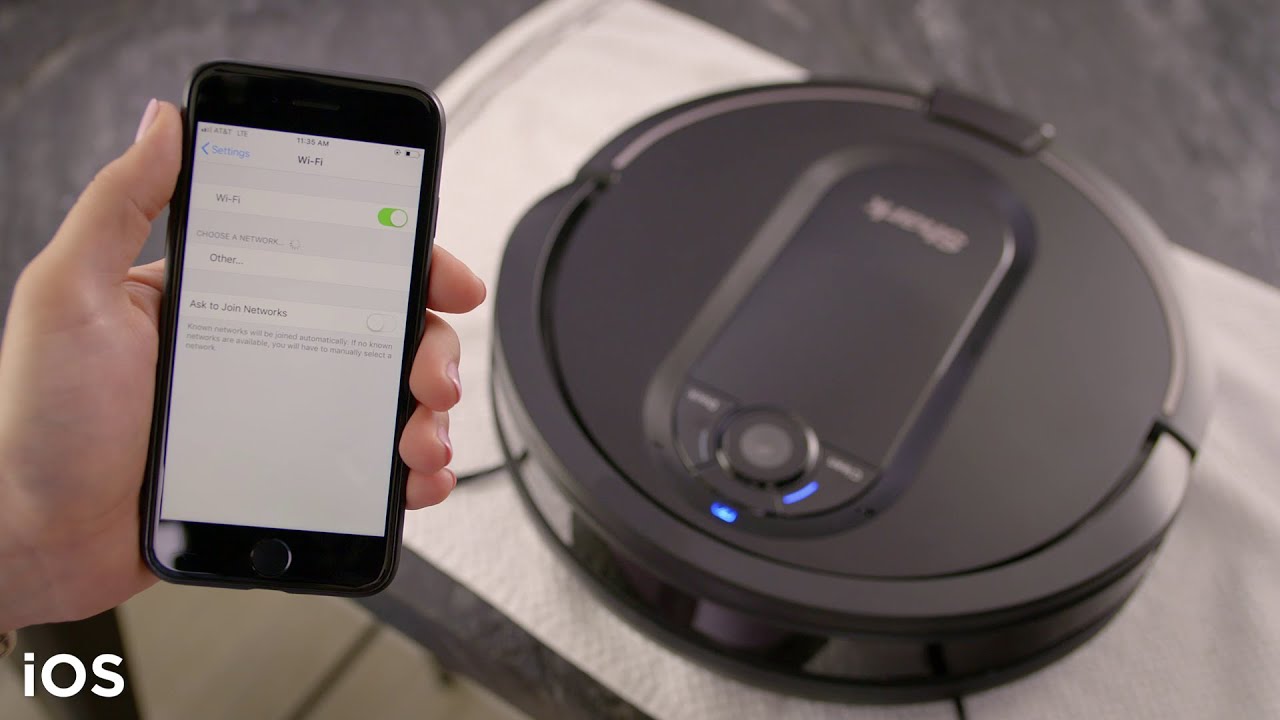
- Follow on-screen instructions: Usually, you press and hold the Dock and Clean buttons until the WiFi light blinks.
- Connect to the robot’s WiFi: Your phone may need to temporarily connect to the robot’s WiFi signal.
- Complete setup in app.
A frequent mistake: some phones automatically switch back to your regular WiFi network during setup. Turn off “auto-join” for your home network temporarily, or keep your phone on the robot’s WiFi until setup is complete.
Common Pairing Mistakes
- Not pressing the buttons long enough.
- Phone not on the same network as the robot.
- Skipping steps in the app.
7. Try A Different Device
Sometimes, your phone or tablet is the problem.
- Try another phone: Use a different device to set up the robot.
- Try another user account: Sometimes, user profiles get corrupted.
If you have an iOS device and an Android device, try both. Some users find setup works better on one platform than the other, depending on app updates.
8. Examine Hardware
If nothing else works, consider hardware failure.
- Check for physical damage: Drops or water can break the WiFi chip.
- Listen for unusual noises: Signs of internal damage.
- Look for warranty: If your robot is under warranty, contact Shark support.
If you recently moved the robot or cleaned it with a damp cloth, check for signs of moisture near the WiFi light or buttons. Even a small amount of water can cause a short circuit.
9. Contact Shark Support
If you have tried everything, reach out for help.
- Gather information: Model, serial number, what you have tried.
- Describe the issue clearly: Mention that the WiFi light does not come on at all.
- Ask about service or replacement: Some repairs may be covered.
Shark Official Support can give you the latest tips and help with warranty claims.
Real-world Examples And Insights
Sometimes, the problem is not obvious. Here are two insights that many beginners miss:
- Some robots have a WiFi sleep mode. If the robot is idle for a long time, the WiFi module may turn off to save battery. Waking the robot (pressing any button) can turn the WiFi light back on.
- Not all models have a visible WiFi light. Some Shark Ion Robots use other indicators or lights. Always check your model’s manual to see where the WiFi light is located. Owners sometimes look at the wrong light and think something is wrong.
Another detail: some homes have “hidden” WiFi networks (where the SSID is not broadcast). The Shark Ion Robot cannot connect to a hidden network unless you enter the name exactly in the app. Double-check if your network is visible during setup.

Credit: www.youtube.com
Preventing Future Wifi Light Problems
After fixing the problem, you can avoid it happening again with a few good habits.
Keep The Robot Charged
- Always return the robot to the dock after cleaning.
- Clean charging contacts monthly.
If you have pets or lots of dust, clean the contacts more often. Even a thin layer of dust can block charging and cause power problems.
Maintain A Good Wifi Network
- Place your router in a central spot.
- Avoid thick walls between the robot and router.
- Restart your router regularly.
If you move your furniture, check that the robot’s path to the router is still clear. Large metal objects (like refrigerators) can block signals.
Update Software
- Check for app and firmware updates every few months.
- Enable automatic updates if possible.
Remember, updates often fix bugs that could cause the WiFi light to stay off. Don’t ignore update notifications.
Use The Right Network
- Always connect the robot to the 2.4 GHz band.
- Avoid special characters in your WiFi name.
- Do not change your network name or password often.
If you must change your network, be ready to set up all your smart devices again, not just your robot.
Handle The Robot Carefully
- Do not drop or expose the robot to water.
- Store it in a dry, safe place.
If you move homes or travel with your robot, pack it securely to avoid bumps that can damage the WiFi hardware.
Comparison: Shark Ion Robot Vs Other Robot Vacuums
How does the Shark Ion Robot’s WiFi system compare to other brands? Here’s a quick look:
| Feature | Shark Ion Robot | iRobot Roomba | Eufy RoboVac |
|---|---|---|---|
| WiFi Band Supported | 2.4 GHz only | 2.4 GHz only | 2.4 GHz only |
| WiFi Light Indicator | Yes | Yes | No |
| App Updates | Frequent | Frequent | Occasional |
| Bluetooth Setup | Some models | Yes | No |
| Guest Network Support | No | No | No |
Most robot vacuums have similar WiFi requirements. The main difference is how the light works and how easy the setup process is.
For example, iRobot’s Roomba has a more detailed light ring that gives clearer feedback, but also sometimes confuses users with complex blinking codes. Eufy RoboVac often has no dedicated WiFi light at all—so users must rely on the app for status.
Shark’s approach is simple, but you need to know where to look for the indicator.
Data: Common Causes For Shark Ion Robot Wifi Light Not On
Here’s what Shark support reports as the most frequent causes:
| Cause | Percentage of Cases |
|---|---|
| Power/battery issues | 38% |
| WiFi network problems | 34% |
| App/setup mistakes | 16% |
| Firmware/software bugs | 8% |
| Hardware failure | 4% |
As you can see, power and network issues make up most cases.
One thing beginners often miss: power problems are more likely if you haven’t used the robot in a while. Batteries self-discharge slowly, and even a good battery can be too low to power the WiFi module if left unused for weeks.
When To Replace Or Repair Your Shark Ion Robot
It is not always possible to fix the WiFi light problem yourself. Here’s when you may need professional help:
- The robot does not respond at all, even with a full battery.
- The WiFi light never comes on, but other lights do.
- The robot works, but the WiFi light is dark and app control never works.
- You hear rattling or see physical damage after a drop.
- The robot is under warranty and basic steps don’t help.
Always contact Shark support before opening the robot or attempting repairs. DIY repairs may void the warranty.
If your robot is out of warranty, some local repair shops can diagnose hardware problems. However, WiFi module replacement can be difficult and costly compared to buying a new robot.

Credit: www.reddit.com
Extra Tips For Reliable Wifi Connection
- Avoid interference: Keep your router away from microwaves, cordless phones, and thick walls.
- Use a WiFi extender: If your home is large, a WiFi range extender can help.
- Label your networks: If you have both 2.4 GHz and 5 GHz, give them clear, different names.
- Don’t overload your network: Too many smart devices can slow things down.
- Document your setup: Write down your WiFi network and password and keep them safe.
Another tip: if you have guests often, set up a separate guest network. This keeps your main network less crowded and avoids accidental changes to your robot’s connection.
Frequently Asked Questions
Why Is My Shark Ion Robot Wifi Light Not Turning On Even After Charging?
If the WiFi light stays off after a full charge, check that the power switch is on. Make sure the charging contacts are clean. If the robot works but the WiFi light is off, try resetting the robot. If none of these steps help, the WiFi module or LED may be damaged.
Can My Shark Ion Robot Connect To 5 Ghz Wifi?
No, most Shark Ion Robots only connect to 2.4 GHz WiFi networks. If your router is 5 GHz only, you need to enable 2.4 GHz in your router’s settings.
What If The Shark Clean App Cannot Find My Robot?
Make sure your phone is on the same 2. 4 GHz WiFi network. Turn off mobile data during setup. If it still fails, restart your phone, reset the robot, and try again. Sometimes, using a different phone helps.
Is There A Way To Reset The Wifi On My Shark Ion Robot?
Yes. Press and hold both the Dock and Clean buttons for about 10 seconds until you hear a beep or see the lights blink. This clears old network info and lets you set up WiFi again.
Where Can I Find Official Support For Shark Ion Robot Issues?
You can visit the Shark Official Support page. It has guides, FAQs, and contact options for live help.
A working WiFi connection brings out the best in your Shark Ion Robot. If the WiFi light is not on, follow these steps to quickly find and fix the problem. With the right troubleshooting, you’ll have your robot cleaning and connected in no time.
If you ever get stuck, don’t hesitate to reach out for expert help.
Credit: www.youtube.com