If your Shark Ion app stopped working after an update, you are not alone. Many users face problems with smart home apps when new versions are released. You might feel frustrated when your robot vacuum cannot connect, stops cleaning schedules, or shows errors on your phone. Sometimes, everything worked fine before, but after the update, things go wrong. This can make you wonder: is it your phone, the app, the robot, or something else?
This article will help you find out why the Shark Ion app fails after an update, and what you can do to fix it. We will look at the most common causes, step-by-step solutions, and practical tips to prevent future problems. You’ll also learn how to contact support, what to do if nothing works, and how to keep your smart cleaning routine running smoothly. Even if you are not a tech expert, you will find clear instructions and real examples to guide you. Let’s get your Shark Ion robot and app working together again.
Why Does The Shark Ion App Stop Working After An Update?
When an app update causes problems, it usually means something changed in the way the app communicates with your device or the robot vacuum. These changes can introduce software bugs, create compatibility issues, or reset settings. Here are the main reasons why the Shark Ion app may fail after an update:
- App Bugs or Glitches: New versions sometimes have coding errors that cause crashes, freezes, or missing features.
- Device Compatibility: Your smartphone’s operating system (Android/iOS) may not work well with the new app version.
- Network Issues: Updates can change how the app connects to Wi-Fi, leading to disconnects or failed connections.
- Login and Account Problems: Updates can log you out or create errors with saved credentials.
- Robot Firmware Mismatch: The robot vacuum’s firmware may not match the updated app, causing communication failures.
- Cache and Data Corruption: Old app data can conflict with new files, causing unexpected errors.
- Permission Changes: The app may need new permissions that are not enabled after the update.
Many users miss that an app update can trigger several of these problems at once. For example, a new version might require a higher Android version, or a Wi-Fi setting might need to be reconfigured. Understanding these causes helps you find the right solution faster.
Another less obvious cause is the way certain app updates are rolled out to users. Sometimes, updates are released in waves, so not all devices get the same app version at the same time. This means you might see problems that friends or family with the same robot do not experience right away.
Also, some updates silently change how your robot links to cloud servers, which can break features you rely on, like push notifications or voice assistant integration.
Common Symptoms After A Shark Ion App Update
You might notice one or more of these issues after updating:
- The app crashes on launch
- “Cannot connect to robot” message
- Robot vacuum not showing in the app
- Lost cleaning schedules or history
- App stuck on loading screen
- “Login failed” or cannot sign in
- App cannot find Wi-Fi or connect to network
- Missing controls or blank screens
Sometimes, the app works on one phone but not another, or only some features fail. These details help you narrow down what is wrong.
For example, if your app loads but can’t find the robot, the problem is often with Wi-Fi or permissions. If the app crashes before you see anything, it’s likely a software bug or data conflict. If you lose cleaning schedules, it may be because the update reset your user data—something many people miss, especially if they use the app on more than one device.
If you see new error messages after an update, take a screenshot. These messages can help when you contact support or search for solutions online. Sometimes, small changes in the app’s interface after an update can also confuse users—for example, buttons might move or options might be renamed.
Step-by-step Solutions: Fixing The Shark Ion App
You do not need to be an expert to solve most app problems. Follow these steps, and test the app after each one:
1. Restart Your Phone And Robot Vacuum
Many app problems are temporary glitches. Restarting your devices gives them a fresh start.
- Turn off your phone completely, wait 20 seconds, and turn it back on.
- For the Shark Ion robot, press and hold the power button until it turns off. Wait 10 seconds, then turn it back on.
This simple step solves more issues than you might expect.
Some users think restarting is too basic, but it often clears memory errors or stuck connections. If you use your phone for many apps at once, background processes can interfere with Shark Ion. Restarting clears these.
2. Check For Another Update
Sometimes, developers release a quick “bug fix” update after users report problems.
- Open the App Store (iOS) or Google Play Store (Android).
- Search for “Shark Ion” and see if a new update is available.
- Install it if you see one.
A recent update may already fix your problem.
Don’t forget to check your phone’s automatic update settings. Sometimes, an update is downloaded but not installed. Also, check for “pending updates” for other related apps, like Google Play Services or Apple HomeKit, as these can affect Shark Ion’s performance.
3. Clear App Cache And Data
Old data can conflict with new app versions. Clearing cache and app data gives you a clean start.
For Android:
- Go to Settings > Apps > Shark Ion.
- Tap “Storage & cache.”
- Tap “Clear Cache.”
- If that does not work, tap “Clear Data” (this will log you out).
For iPhone:
- Uninstall the app, then reinstall it from the App Store. This removes old data.
Log back in and see if the app works normally.
Sometimes, after clearing data, you may notice the app loads faster or previously missing features return. For users who have tried updating but keep seeing the same error, this step can be a game changer.
4. Check Your Wi-fi Network
The Shark Ion app needs a 2.4 GHz Wi-Fi network. Many routers have both 2.4 GHz and 5 GHz bands. After an update, the app may lose connection to the correct one.
- Check your phone’s Wi-Fi settings. Make sure you are connected to a 2.4 GHz network (network names often end in “_2G” or “2.4”).
- Move your phone and robot closer to the router during setup.
- Restart your router by unplugging it for 30 seconds.
If your home Wi-Fi changed recently, you may need to reconnect your robot from scratch.
Advanced tip: Some routers let you “pause” devices or have guest networks. Make sure your robot and phone are on the same main network. If you use a mesh Wi-Fi system, try connecting both devices to the same mesh point.
5. Log Out And Log Back In
Update errors can log you out silently or mess up your account session.
- Open the Shark Ion app.
- Go to settings, tap “Log Out.”
- Close the app, then open it and log in again.
This refreshes your account and sometimes restores missing features.
If you use a password manager, make sure it enters your correct credentials. A common mistake is using an old password or auto-fill error, which can make it seem like the app is broken when it’s just a login problem.
6. Reinstall The Shark Ion App
If cache clearing did not help, a full reinstall removes hidden app files.
- Uninstall the Shark Ion app from your device.
- Restart your phone.
- Download the app again from the official store.
- Log in with your existing Shark account.
This step is effective for fixing persistent glitches.
Some advanced users forget to restart their phone after uninstalling. This extra step clears out any background processes linked to the app.
7. Update Your Phone’s Operating System
App updates sometimes require a newer Android or iOS version. If your phone is outdated, problems are common.
- Go to Settings > System > Software Update (Android) or Settings > General > Software Update (iPhone).
- Download and install any available updates.
- Restart your phone.
After updating, reinstall the Shark Ion app if needed.
If your device is too old for the latest OS version, you may need to use the app on a newer device or tablet. Developers often stop supporting older operating systems, causing new app versions to fail.
8. Check App Permissions
Some updates add new permission needs, like Bluetooth, location, or storage.
- Go to Settings > Apps > Shark Ion > Permissions.
- Make sure all permissions are allowed, especially Location, Storage, Bluetooth, and Wi-Fi.
- On iPhones, go to Settings > Shark Ion and check all toggles.
Missing permissions can block robot discovery and control.
A less obvious tip: On Android 12 and above, you may need to allow “Nearby Devices” permission for the robot to connect. On iPhones, check if “Local Network” access is enabled.
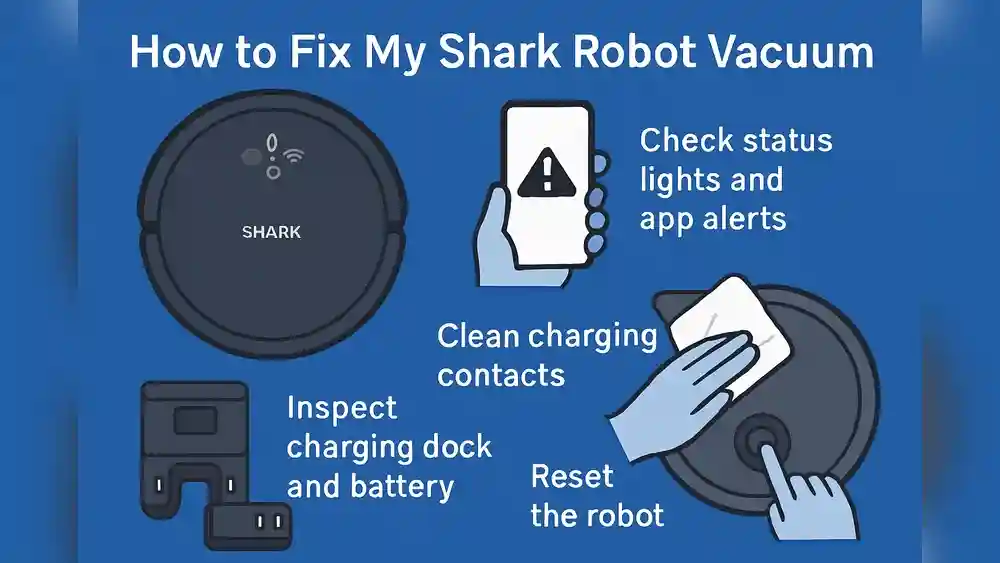
9. Reset Your Shark Ion Robot
If the app cannot find or control the robot, a factory reset can help.
- Find the “Reset” button on the robot (usually under the dustbin or near the power button).
- Hold it for 10 seconds until you hear a beep.
- The robot will reboot and forget old Wi-Fi settings.
You will need to set up the robot as a new device in the app. This step often solves deep communication problems.
Remember to remove the robot from your app before resetting, if possible. This prevents “ghost” robots from appearing in your device list.
10. Contact Shark Support
If nothing works, contact Shark’s customer support for help. They can check for known app bugs, account problems, or hardware issues.
- Prepare your robot’s model number, app version, and phone details.
- Visit the official Shark support page or call their helpline.
Support can also help if your robot needs a firmware update.
If you are nervous about calling, try the online chat option first. Many users get faster responses this way and can easily share screenshots or error messages.
Comparing Shark Ion App Problems: Before And After Updates
Updates can change how the app behaves. Here’s a comparison of the most common issues before and after updating:
| Issue | Before Update | After Update |
|---|---|---|
| App crashes | Rare | More common |
| Robot disconnects | Occasional | Frequent |
| Wi-Fi setup fails | Uncommon | Common |
| Account/login errors | Rare | More common |
| Missing features | Almost never | Sometimes |
You can see that updates sometimes introduce more problems than they solve, especially if your phone, robot, or network has unique settings.
A detail most people miss: If you use “beta” versions of the Shark Ion app, you might see more bugs than regular users. Also, some features may be tested in one region before another, so your experience can differ from what you read online.

Credit: www.youtube.com
Preventing App Problems After Future Updates
You can avoid many issues by preparing before updating the app:
- Read App Update Notes: Check what the new update changes or fixes. Sometimes, new requirements are listed.
- Back Up Cleaning Schedules: Write down your cleaning times, zones, or settings in case the update wipes them.
- Update Robot Firmware: If possible, update your robot’s firmware before updating the app.
- Wait for Reviews: Before updating, read recent app reviews in the app store. If many users report problems, wait a few days.
- Use Official App Stores: Download updates only from Google Play Store or Apple App Store to avoid broken or fake versions.
- Keep Phone and Robot Near Router: For first use after update, keep all devices close to your Wi-Fi router for a strong connection.
Also, consider turning off automatic app updates. This lets you control when you install new versions and gives you time to check if others are having problems first. If you’re part of a family or group with multiple Shark robots, let one person update and test before everyone else does.
Advanced Troubleshooting For Shark Ion App Issues
If you tried basic steps and the app still fails, try these advanced methods:
1. Change Wi-fi Network Settings
Smart robots like Shark Ion only use 2.4 GHz Wi-Fi. If your router combines 2.4 and 5 GHz under one name (called “band steering”), the robot can become confused.
- Log in to your router’s admin page.
- Create separate names for 2.4 GHz and 5 GHz networks (for example, “Home2G” and “Home5G”).
- Connect both your phone and robot to the 2.4 GHz network during setup.
This solves many “cannot connect” errors after updates.
Advanced insight: Some routers have a setting called “AP isolation” or “client isolation.” If this is on, your phone can’t “see” the robot even on the same network. Make sure this is turned off.
2. Disable Vpn Or Ad Blockers
Some users forget that VPNs or ad blockers can block the Shark Ion app’s connection to the internet.
- Turn off VPN or ad blocker apps.
- Try opening the Shark Ion app again.
If it works now, add an exception for the Shark Ion app in your security software.
Remember, some phones have built-in “private DNS” or “data saver” features that can also block connections. Check your network settings if you use these features.
3. Check For Device-specific Bugs
Some phone models or Android/iOS versions have special bugs. Check online forums or the Shark support site for your phone type.
- Search for “Shark Ion app not working [your phone model]” to find others with the same issue.
- Sometimes, using a different phone for setup helps.
If you’re using a brand-new phone or a much older one, compatibility issues are more likely. Check if your device is listed on Shark’s official support page for compatible devices.
4. Test With A Different Phone Or Tablet
If you have another device at home, install the Shark Ion app there.
- Log in with your Shark account.
- Try connecting the robot.
- If it works on another device, your main phone may have an app or system conflict.
This can confirm if the issue is with your phone, not the robot or app.
You can also ask a friend or family member to help with their device. If everything works, you know where the problem is.
5. Reset Network Settings On Your Phone
Phones sometimes keep old Wi-Fi settings that conflict with new apps.
- On iPhone: Go to Settings > General > Reset > Reset Network Settings.
- On Android: Go to Settings > System > Reset > Reset Wi-Fi, mobile & Bluetooth.
You will need to reconnect to all Wi-Fi networks after this step.
After resetting, try setting up the Shark Ion app as if it were a brand-new device.
Real User Experiences And Insights
Many users have shared their struggles and solutions online. Here are some real examples:
- “After the last update, my Shark Ion app kept crashing every time I opened it. I had to clear data and reinstall, then it worked.” – Android user
- “The robot disappeared from my app after updating. Logging out and back in brought it back. I also had to redo my cleaning schedule.” – iPhone user
- “My robot would not connect to Wi-Fi after the update. I found out my router switched to 5 GHz. I made a separate 2.4 GHz network, and setup worked again.” – Tech-savvy user
A common mistake is blaming the robot hardware when the problem is with the app, network, or phone. Sometimes, waiting for a new app update is the only solution if the problem is widespread.
Another insight: Some users reported that resetting their robot and deleting it from the app before re-adding solved deep connection issues that updates caused. Others found that switching from mobile data to Wi-Fi (or vice versa) during setup helped the app find the robot.
Comparing Shark Ion App To Other Robot Vacuum Apps
How does the Shark Ion app compare to other robot vacuum apps, like iRobot Home (Roomba) or Roborock, in terms of reliability after updates? Here’s a quick look:
| App | Update Reliability | User Ratings (2024) | Common Issues |
|---|---|---|---|
| Shark Ion | Moderate | 3.2/5 (Google Play) | App crashes, Wi-Fi issues, missing robots |
| iRobot Home | High | 4.5/5 (Google Play) | Occasional login bugs |
| Roborock | Moderate | 3.8/5 (Google Play) | Connection errors, map resets |
You can see that Shark Ion’s app faces more problems after updates compared to some competitors. This makes knowing how to troubleshoot even more important.
Also, note that some brands have more frequent app updates but test them longer before release. Shark sometimes pushes updates quickly, so being cautious before installing right away can save you from headaches.

Credit: www.wusf.org
When To Wait For A Fix Vs. Try More Solutions
Sometimes, no amount of resetting or reinstalling works because the problem is on Shark’s servers or is a bug in the latest app version. If you see many recent negative reviews or posts on forums, it’s likely a widespread issue.
What Can You Do?
- Report the problem in the app store review and to Shark support.
- Watch for a new update and install it as soon as available.
- Check if you can use basic cleaning functions with the robot’s physical buttons while waiting.
If you’re part of online Shark communities, you can share your experience and see if others have found workarounds. This can sometimes lead to faster unofficial solutions, like rolling back to an older app version (be careful with this, as it’s not officially supported).
Keeping Your Robot Working Without The App
If the app is down for a long time, you can still use your Shark Ion robot manually:
- Press the Clean button on the robot to start cleaning.
- Use the Dock button to send it home.
- Empty the dustbin and clean sensors regularly.
You will lose smart features like scheduling and cleaning history, but basic cleaning will still work.
Some users set a reminder to press “Clean” at the usual time, keeping their routine even without the app. If you have pets, vacuuming manually once or twice a day can prevent hair from piling up while you wait for the app to return.
How To Contact Shark Support
If all troubleshooting fails, contact Shark’s official support for expert help.
- Visit the Shark support website: Shark Clean Support
- Call their support line or use the chat feature.
- Provide your robot’s serial number, app version, and a clear description of the problem.
Support can sometimes push a firmware update, help with account issues, or confirm if a bug is known and being fixed.
Have your proof of purchase ready if your robot is still under warranty. This can speed up replacements or advanced support.
The Importance Of Feedback
Leaving detailed feedback after an update helps Shark’s developers fix problems faster. Include:
- Your phone model and OS version
- Robot model
- App version
- Step-by-step description of the problem
This information helps developers find and fix bugs more quickly.
If you join the Shark Ion beta testing program, your feedback is even more valuable. Beta testers often get early fixes and can shape future updates.
Credit: www.youtube.com
Future-proofing Your Smart Home Experience
As smart devices get more complex, app updates will always bring some risk. Here are two non-obvious tips most beginners miss:
- Create a separate “smart home” Wi-Fi network: This keeps your robots and other devices on a stable connection, away from heavy internet traffic.
- Keep old app APKs or versions: Advanced users can “roll back” to a previous app version if the latest update breaks everything. Be careful with this, as it’s not supported by Shark.
Staying informed and cautious with updates makes your smart home more reliable.
Another tip is to keep a small notebook or digital note about your network settings, robot serial numbers, and app versions. If you need support or have to set up again, you’ll have all the details ready.
Frequently Asked Questions
Why Does My Shark Ion App Keep Saying “cannot Connect To Robot” After An Update?
This usually means your phone, the app, or the robot is not on the same Wi-Fi network, or the app lost its permissions. Try restarting all devices, checking Wi-Fi settings, and making sure location and network permissions are enabled for the app.
Sometimes, your router’s firewall or parental controls block new devices after an update. Temporarily disable these or add the robot as an allowed device.
Will Uninstalling And Reinstalling The Shark Ion App Delete My Cleaning Schedules?
Yes, uninstalling the app usually removes saved settings and schedules from your phone. Write down your cleaning times before reinstalling, so you can enter them again after setup.
Some app versions sync schedules to your Shark account, but this is not always reliable after updates. Double-check after reinstalling.
How Do I Know If My Shark Ion Robot Needs A Firmware Update?
Firmware updates sometimes happen automatically through the app, but if the robot is not responding or new features are missing, check the app’s settings for “Update Robot” or contact Shark support for help.
A blinking Wi-Fi light or beeping sounds during setup can also signal the need for a firmware update.
Can I Use The Shark Ion Robot If The App Is Not Working?
Yes, you can start a basic cleaning cycle by pressing the physical “Clean” button on the robot. However, advanced features like scheduling, maps, and notifications will not work without the app.
If you need to pause or stop cleaning, use the buttons on the robot.
Where Can I Find Help If The App Problem Is Not Solved Here?
For the latest fixes and official support, visit the Shark Clean Support website. You can also find help in Shark user forums and by reading recent app reviews for tips from other users.
Don’t overlook YouTube tutorials—many users upload step-by-step videos showing how they solved specific Shark Ion app problems.
When your Shark Ion app stops working after an update, it’s stressful. But with the right steps, you can often fix the problem yourself. If all else fails, Shark’s support team and online communities are there to help. Taking a few minutes to prepare before future updates will keep your cleaning routine smooth and worry-free.